Amikoo Tutorials & Guides

STEP-BY-STEP WALKTHROUGHS FOR EVERY AMIKOO WORKFLOW

 Short video guides covering how to generate tests, run them, review results, and open pull requests, all inside your own repo. Start with the Home Overview, then jump to whichever workflow you need. 

Amikoo Onboarding Guide
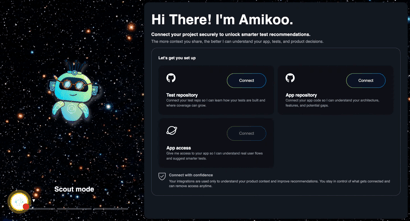
00:00: This tutorial guides you through connecting your GitHub repository to Amikoo and completing 00:04: the initial setup. 00:06: You will learn how to link your Github 00:08: repositories and configure application details. 00:11: Click "Connect" to begin linking 00:13: your Github app repository with Amikoo. 00:16: Click "Connect" again to proceed with the integration setup. 00:20: You will be redirected to Github to authorize Amikoo access to your repository. 00:25: Select the GitHub account for integration. 00:28: Click "Install" to add the AmikooAI application to your GitHub account. 00:33: You can choose to add access to all or some repositories in this screen. 00:38: Click "Use GitHub Mobile" to confirm access through the mobile app. 00:42: Once authorized you will be redirected to the onboarding to continue configuring 00:46: your repository connection. 00:49: Click to choose the repository 00:50: you want to connect with Amikoo. 00:53: Click "Continue" to move forward with the repository configuration process. 00:57: Click on your preferred branch for integration. 01:01: Click "Finish setup" to finalize the repository connection. 01:05: Click "Connect" to link your application to amikoo. It's 01:07: important to note you 01:08: will need an application URL, credentials are optional. 01:13: Enter your application name as "FitHub" in the provided field. 01:16: Enter your application URL in the field. 01:19: Credentials for your application are optional. 01:22: Click "Connect" to finalize your application setup and link it to Amikoo. 01:27: Click "Start exploring" to access the Amikoo platform and begin using its features. 01:33: You have successfully connected your GitHub repository to Amikoo, configured 01:36: your application details, and completed the initial setup. 01:40: You can now start exploring Amikoo's features to manage your projects efficiently.
Amikoo Home Overview
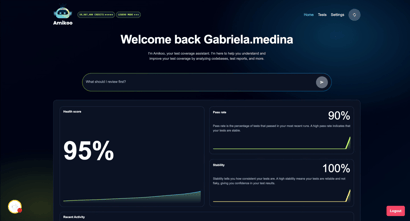
00:00: This tutorial introduces you to the Amikoo homepage and its key features. 00:04: You'll learn how to navigate and interact with Amikoo to monitor and manage your test 00:08: executions effectively. 00:11: The homepage opens with the AmikooChat interface. You can ask Amikoo anything — for example, 00:15: typing "What 00:16: can you do?" 00:18: will switch to chat mode and return a summary of Amikoo's capabilities. 00:26: Amikoo can help with a range of tasks including understanding test coverage, 00:30: analyzing execution results, writing tests, managing your test repository, and 00:35: learning about your application. 00:37: It can work with your Amikoo QA execution history, connected GitHub repositories, 00:41: and any product knowledge files 00:43: you've provided. 00:44: If you have something specific in mind, type it directly into the prompt field to get 00:48: started right away. 00:57: Below the chat, you'll find your key test metrics. 00:59: The health score is calculated based on your pass rate and test stability. 01:04: The pass rate shows how many of your tests are currently passing, and the stability 01:08: score indicates how consistent and reliable your tests are over time. 01:12: The Recent Activity section shows your latest test runs. In this example, two tests 01:17: have been consistently failing — with failures recorded eight hours ago and again 01:21: three hours ago. 01:23: The Action Required section highlights issues that are impacting your test 01:26: reliability. 01:27: Issues are flagged as either failed or flaky. In this example, only failed tests are 01:32: present, 01:33: so no flaky tests appear. 01:35: The iterations view shows the same failing tests across different test runs. 01:40: Each run includes a video recording — if the failure had a different cause, the 01:44: video would reflect that difference. 01:49: Click through to access the video and get a more detailed breakdown of any test run 01:53: or issue. 01:55: The Today's Journey section displays your most recent test executions in sequence. 02:00: You can view up to 20 executions and scroll horizontally to browse them. 02:04: At the end of the list we have a button that takes us to the test view. 02:08: At the bottom of the homepage, suggested questions 02:10: give you quick starting points for interacting with Amikoo. 02:14: You can select one of these or type your own question directly. 02:17: This tutorial provided a comprehensive overview of the Amikoo homepage, including 02:21: the chat interface, test metrics, recent failures, action required issues, and today's 02:27: execution journey. 02:28: You can now confidently navigate the homepage and use Amikoo's features to stay on top 02:33: of your testing.