Amikoo Guides, Updates & Resources 

Learn how to use AI QA agents to automate, repair, and scale your testing 

Explore step-by-step tutorials, walkthroughs, and practical guides to help you get the most out of Amikoo. Learn how to generate and repair Playwright tests, uncover coverage gaps, and use AI agents to scale your QA workflows faster. 

Amikoo Home Overview
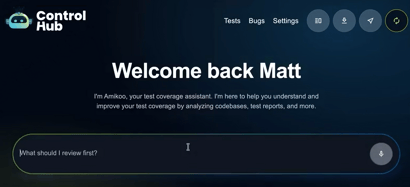
00:00: This tutorial introduces you to the Amikoo homepage and its key features. 00:04: You'll learn how to navigate and interact with Amikoo to monitor and manage your test 00:08: executions effectively. 00:11: The homepage opens with the AmikooChat interface. You can ask Amikoo anything — for example, 00:15: typing "What 00:16: can you do?" 00:18: will switch to chat mode and return a summary of Amikoo's capabilities. 00:26: Amikoo can help with a range of tasks including understanding test coverage, 00:30: analyzing execution results, writing tests, managing your test repository, and 00:35: learning about your application. 00:37: It can work with your Amikoo QA execution history, connected GitHub repositories, 00:41: and any product knowledge files 00:43: you've provided. 00:44: If you have something specific in mind, type it directly into the prompt field to get 00:48: started right away. 00:57: Below the chat, you'll find your key test metrics. 00:59: The health score is calculated based on your pass rate and test stability. 01:04: The pass rate shows how many of your tests are currently passing, and the stability 01:08: score indicates how consistent and reliable your tests are over time. 01:12: The Recent Activity section shows your latest test runs. In this example, two tests 01:17: have been consistently failing — with failures recorded eight hours ago and again 01:21: three hours ago. 01:23: The Action Required section highlights issues that are impacting your test 01:26: reliability. 01:27: Issues are flagged as either failed or flaky. In this example, only failed tests are 01:32: present, 01:33: so no flaky tests appear. 01:35: The iterations view shows the same failing tests across different test runs. 01:40: Each run includes a video recording — if the failure had a different cause, the 01:44: video would reflect that difference. 01:49: Click through to access the video and get a more detailed breakdown of any test run 01:53: or issue. 01:55: The Today's Journey section displays your most recent test executions in sequence. 02:00: You can view up to 20 executions and scroll horizontally to browse them. 02:04: At the end of the list we have a button that takes us to the test view. 02:08: At the bottom of the homepage, suggested questions 02:10: give you quick starting points for interacting with Amikoo. 02:14: You can select one of these or type your own question directly. 02:17: This tutorial provided a comprehensive overview of the Amikoo homepage, including 02:21: the chat interface, test metrics, recent failures, action required issues, and today's 02:27: execution journey. 02:28: You can now confidently navigate the homepage and use Amikoo's features to stay on top 02:33: of your testing.
Execute Tests and Receive Feedback Using Amikoo
00:00: This tutorial guides you through executing tests with Amiku and receiving feedback from 00:03: those tests. 00:05: Before starting, ensure you have access to your test repository and Amiku account 00:09: credentials. 00:12: Hello. 00:12: Today we're going to learn how to execute our test with Amiku and receive the feedback 00:16: from the test we run. 00:18: So now that we've connected our test repository as well as our app repository, which 00:22: is not mandatory, we only need our tests. 00:25: We're going to be able to see the test here listed. The first time 00:29: we're not going to see the execution number since they haven't been run. 00:33: What we're going to do is go to settings and get our API key. 00:37: We'll copy it here to authenticate and receive the feedback. 00:42: We're going to go to our Visual Studio or any IDE of our preference. 00:46: We're going to need to install this npm package so we can report back to Amikoo. 00:51: Here is the minimum necessary in our Playwright config file. 00:54: Once we install, we can see it's going to report to Amiku. 01:09: Then once we've had our API key, we've saved our environment, we can go and execute 01:14: our tests. 01:16: Here we can see that all the tests have ended and it's sending an execution report. 01:21: It's uploading the videos and the execution report has been sent successfully. 01:25: So we can go back to Amiku and see our test executions. 01:30: Here we can see April 3rd to 2nd execution 01:32: number three. It was previously number two. And that's it. 01:36: That's all we need to configure our reporter to send our back to Amiku. 01:40: Remember, it's necessary to have our test repo connected and our API key. 01:46: You have successfully executed tests using Amiku, configured the necessary settings, and 01:50: reviewed the test execution history.
Create and Pull Request New Tests to Your Repo
00:00: This tutorial guides you through creating new tests and submitting a pull request 00:03: with a new branch. 00:05: You'll learn how to identify test coverage gaps, generate tests, and manage your 00:09: pull request from Amikoo through to GitHub. 00:13: This tutorial walks through a complete workflow: identifying coverage gaps, 00:17: generating new tests, and submitting them via a pull request on a new branch. 00:22: Ask Amikoo: "What are some gaps in my test coverage?" Amikoo will analyze your repository 00:27: and return a breakdown of untested modules. 00:30: Amikoo categorizes your coverage into three groups: areas with no tests, areas that are 00:35: partially covered, and areas that have tests but could benefit from a review. 00:40: Review the available scenarios and choose which coverage area you'd like to address 00:43: first. 00:45: In this example, an area with no existing coverage is selected, with the goal of 00:49: generating new tests and submitting them via a pull request. 00:53: Using the context from your connected repository, Amikoo creates tests for the 00:57: requested modules 00:58: — in this case, five new test files. 01:02: Amikoo displays the contents of each test file, including the test name and the 01:06: location where it will be added. 01:11: Before creating and committing the files, Amikoo presents 01:14: a full summary for your review. 01:19: The summary confirms 26 new tests across five files. Review the details before 01:24: proceeding. 01:25: The tests span several distinct areas of your application, giving you broad new 01:29: coverage in a single workflow. 01:31: Confirm to create the branch and commit the files. Amikoo creates a pull request 01:36: containing all five files and 26 tests. 01:42: Amikoo may surface warnings — for example, that the Amikoo QA reporter isn't 01:47: configured in your repository, or that no GitHub Actions workflow exists. 01:51: These are informational only and do not affect the branch or pull request creation. 01:56: Head to GitHub to view the newly created pull request. 02:01: The pull request mirrors the summary from AmikooChat — five test files with 26 new 02:06: tests covering member directory, today's schedule, instructors, analytics, and chat. 02:10: chat. 02:15: From the pull request, you can review the commits, inspect the changed files, and 02:19: merge when ready. 02:21: The pull request confirms that the branch was created by AmikooAI. 02:25: This workflow shows how quickly new tests can be created and submitted directly from 02:30: the AmikooChat interface. 02:32: Once you've reviewed the pull request, merge it to incorporate the new tests into 02:36: your main branch. 02:37: You have successfully identified coverage gaps, generated new test files, and 02:41: submitted a pull request with a new branch. 02:44: Head to GitHub to review and merge 02:46: the pull request to complete the process.
Explore Tests In Amikoo
00:00: Click here to watch This tutorial 00:01: introduces you to the Test View interface and its features. 00:05: You'll learn how to navigate, filter, and analyze your tests effectively. 00:10: This tutorial covers the Test View — where you can explore, filter, and review all 00:14: the tests in your connected repository. 00:17: The Test View displays a complete list of all tests available in your test 00:21: repository. 00:23: Each test shows the status of its most recent execution. 00:25: In this example, the test passed, ran for three seconds on the main branch, and has 00:30: been executed twice. 00:32: The execution count reflects how many times a test has been run. 00:36: Each time 00:36: the test is executed, 00:37: the count increases accordingly. 00:40: The date shows when the test was most recently executed. 00:43: The Test View includes a search bar and several filters to help you quickly find 00:47: specific tests. 00:49: Use the search bar to find tests by name. For example, searching "class" or "class 00:53: manager" will return all tests with those terms in their name. 00:57: Filter your tests by status to narrow down results. 01:00: Selecting "Passed" will show only tests that have passed, hiding any failed tests from 01:04: the list. 01:06: Selecting "Failed" will display only the tests that have not passed, making it easy to 01:10: focus on what needs attention. 01:14: The stability filter shows how consistently a test passes over time. 01:17: This metric requires enough runs to calculate — make sure your tests are 01:22: executed regularly so Amikoo can determine their stability. 01:25: Select the stability filter to view tests sorted or filtered by their stability 01:29: metric. 01:31: The runtime filter lets you find tests within a specific duration range. 01:35: For example, filtering for tests above one minute will return no results 01:39: if all your tests run under a minute, while filtering for zero to one minute will display 01:43: all of them. 01:48: Refine 01:49: the runtime range as needed to find tests that fall within a specific execution 01:52: window. 01:54: Click on any test card video button to open a modal with a recording of that 01:57: execution. 01:58: This is especially useful for reviewing what happened during a failed run. 02:05: Use the execution video to investigate what went wrong and gather insights into the 02:09: cause of the failure. 02:10: Click outside the modal to close it and return to the Test View. 02:16: This tutorial walked you through the Test View in Amikoo, including how to browse your test 02:20: list, check execution statuses, apply filters, and review execution recordings. 02:25: You can now efficiently manage and analyze your tests using these features.
What Can I Do With my Executions and Amikoo?
What can I do with my executions and Amikoo?
00:00: This tutorial explains how to analyze test executions in Amikoo to identify and address 00:04: failing tests. 00:06: You'll learn how to interpret test results, review fixes, and distinguish between 00:10: product issues and test issues. 00:13: This tutorial covers what your test executions in Amikoo 00:16: can tell you and how to act on that information. 00:19: Start by asking Amikoo which tests fail most often. In this example, Amikoo identifies two 00:25: tests with a 100% failure rate. 00:30: You can ask AmikooChat to create a fix for the failing tests and open a pull request with 00:34: the changes. 00:36: Navigate to your Pull Requests on GitHub to see the actions Amikoo has taken. 00:41: The most recent pull request reflects the fix that was just requested. 00:46: The pull request includes a full breakdown of the fix — which sections were 00:50: changed, which lines were affected, and a description of what was updated. 00:56: Amikoo makes targeted edits, leaving 00:58: all unrelated tests unchanged. Only the code that needs to be fixed is touched. 01:05: Back in AmikooChat, ask: "Is there any suspicion of a product failure based on my failed executions?" 01:10: Amikoo will 01:11: analyze the results before responding. 01:22: Based on the two failing tests, Amikoo identifies two scenarios worth investigating 01:26: as potential product issues. 01:34: Amikoo differentiates between the two issues 01:36: — in one case the application itself is the likely 01:40: cause, and in the other the test is the problem. 01:47: Amikoo describes what may be causing each failure. 01:49: For example, it may flag a mismatch with an expected header value. 01:55: When a failure is harder to attribute to the test alone, Amikoo will recommend manual 01:59: verification to rule out a genuine product issue. 02:06: These examples show just two of the ways you can use test executions in Amikoo to investigate 02:11: failures and take action. 02:13: This tutorial demonstrated how to analyze test executions in Amikoo, identify failing tests, 02:18: review 02:18: fixes via pull requests, and distinguish between product and test issues. 02:24: You can now use Amikoo to confidently investigate test failures and determine when 02:28: manual checks are needed.
What can I do with Amikoo?
00:00: This tutorial introduces you to the capabilities of AmikooChat. You'll learn how to create 00:04: test branches, manage pull requests, and review test coverage for your application. 00:08: application. 00:10: Get an overview of what you can accomplish with AmikooChat, from generating tests to managing 00:14: pull requests directly through conversation. 00:18: AmikooChat lets you target specific scenarios for testing or ask for suggestions on what 00:22: to test next — making it easy to direct your coverage where it matters 00:25: most. 00:29: Enter a prompt such as: "Please 00:31: create a new test that covers the member detail modal in a new branch and create a 00:35: PR to main." 00:38: This instructs Amikoo to test a specific feature and open a pull request to your repository. 00:42: Repository. 00:43: Amikoo will take a moment to think through the request and execute the necessary 00:47: actions. 00:48: Amikoo returns a summary of what was completed 00:50: — in this case, a new branch was 00:53: created, a pull request was opened, and 11 tests were added. 00:57: The tests cover a range of cases including member name, email, tier badge, join date, 01:02: class name, bookings, and secondary member display. 01:05: Amikoo also made decisions based on tests that already exist in your repository. 01:11: Because Amikoo has the context from your connected repository, 01:14: it adds only genuine new coverage and avoids duplicating existing tests. 01:19: Amikoo is already familiar with your tests and application. 01:22: You can go a step further and ask it directly what it knows. 01:27: Type: 01:27: "What do you know about my app?" to get a full breakdown of Amikoo's understanding of 01:32: your application. 01:33: Amikoo will provide a description of your app based on the context 01:36: it has gathered. 01:39: In this example, Amikoo identifies the app as a gym and health club management CRM — 01:44: a React application for managing memberships, class bookings, and studio operations. 01:49: Amikoo can identify the roles defined in your app, such as member and admin. 01:54: Amikoo surfaces your business rules, available demo data, and a summary of what has 01:59: already been tested. 02:01: The coverage overview shows what's already been tested and highlights areas that could 02:05: benefit from additional test cases. 02:08: This tutorial demonstrated how to create a test branch, generate a pull request, and 02:13: review test coverage using AmikooChat. You're now 02:15: ready to explore more of Amikoo's testing features and manage your application's test 02:19: cases 02:20: with confidence.
Account Settings in Amikoo
00:00: This tutorial walks you through understanding and managing your account settings. 00:03: You'll learn how to navigate your profile 00:05: information, integrations, and project context to customize your Amikoo experience. 00:12: In this tutorial, you'll get an overview of the Settings page and everything you can 00:15: manage from it. 00:17: From the homepage, find the Settings button in the top-right corner and click it to get started. 00:20: get started. 00:22: The Settings page opens, giving you access to all your account preferences and 00:26: configurations. 00:29: The Settings page is organized into three tabs — Profile, Integrations, and 00:33: Project Context — each covering a different area of your account. 00:37: The Profile tab displays your name and your API key, which is used to authenticate 00:41: your account with Amikoo. 00:44: Your API key is required 00:45: when installing the Amikoo reporter package via NPM, as it allows your execution 00:50: results to be sent to Amikoo by adding your key to the .env file on your repo. 00:55: Click the Integrations tab to view and manage your connected services. 01:00: GitHub is currently the available integration. From here 01:03: you can update your connection, 01:04: add more repositories, reduce access, or keep your current setup — all managed from 01:09: this tab. 01:11: The Project Context tab lets you add or update context for your project. 01:15: If you skipped this step during onboarding, you can complete it here at any time. 01:20: Your current context mode 01:21: reflects how much project context has been provided. 01:24: Legend mode, 01:25: for example, indicates that all available context has been added. 01:29: This section displays your app access, app repository, and test repository all in 01:34: one place. 01:36: If no username appears under App Access, that's expected — credentials are optional 01:40: and not required to proceed. 01:42: You can edit your integrated repository, app repository, and test repository 01:47: directly from this section whenever updates are needed. 01:51: This tutorial walked you through accessing and managing your Amikoo account settings, 01:55: including your profile details, API key, integrations, and project context. 02:01: You can now confidently update your settings and manage your repositories as 02:04: needed.
Get Started With Amikoo: First Interaction
Amikoo Getting Started Guide
00:00: This tutorial helps you get started with Amikoo by walking you through your first interaction. 00:03: interaction. 00:04: Before beginning, you will need to complete the onboarding to get the most out of 00:08: Amikoo's features. 00:11: After completing onboarding, you're ready for your first interaction with Amikoo. 00:15: The chat interface displays suggested questions to help you get started 00:18: — if you're not sure where to begin, simply click on one. 00:22: Click a suggested question to explore what to focus on first in Amikoo. 00:27: For our first interaction we will ask Amikoo: "Can 00:29: you help me create tests for my application?" 00:38: Amikoo will return feedback on your application's testing setup and what's available 00:42: to work with. 00:44: Amikoo presents multiple testing scenarios tailored to your application. 00:53: Select which areas of your application you'd like to write Playwright tests for. 00:58: Begin with your application's most critical user flows to prioritize the most 01:01: important tests first. 01:05: Amikoo generates three tests ready to execute and add to your test repository for 01:10: ongoing use. 01:16: This is just one of many things you can do with Amikoo — and it's only the start of 01:20: what's possible from your very first interaction. 01:23: If you don't have a test repository connected yet, your tests won't be committed at 01:27: this stage 01:28: — that's okay. 01:29: Once a test repository is connected, you'll be able to commit your tests and open 01:33: pull requests directly from Amikoo. 01:36: This tutorial walked you through your first interaction with Amikoo, from requesting test 01:40: creation to reviewing feedback and exploring testing scenarios. 01:44: You're now ready to manage and execute tests using Amikoo's features.