This tutorial introduces you to the Test View interface and its features. You'll learn how to navigate, filter, and analyze your tests effectively.
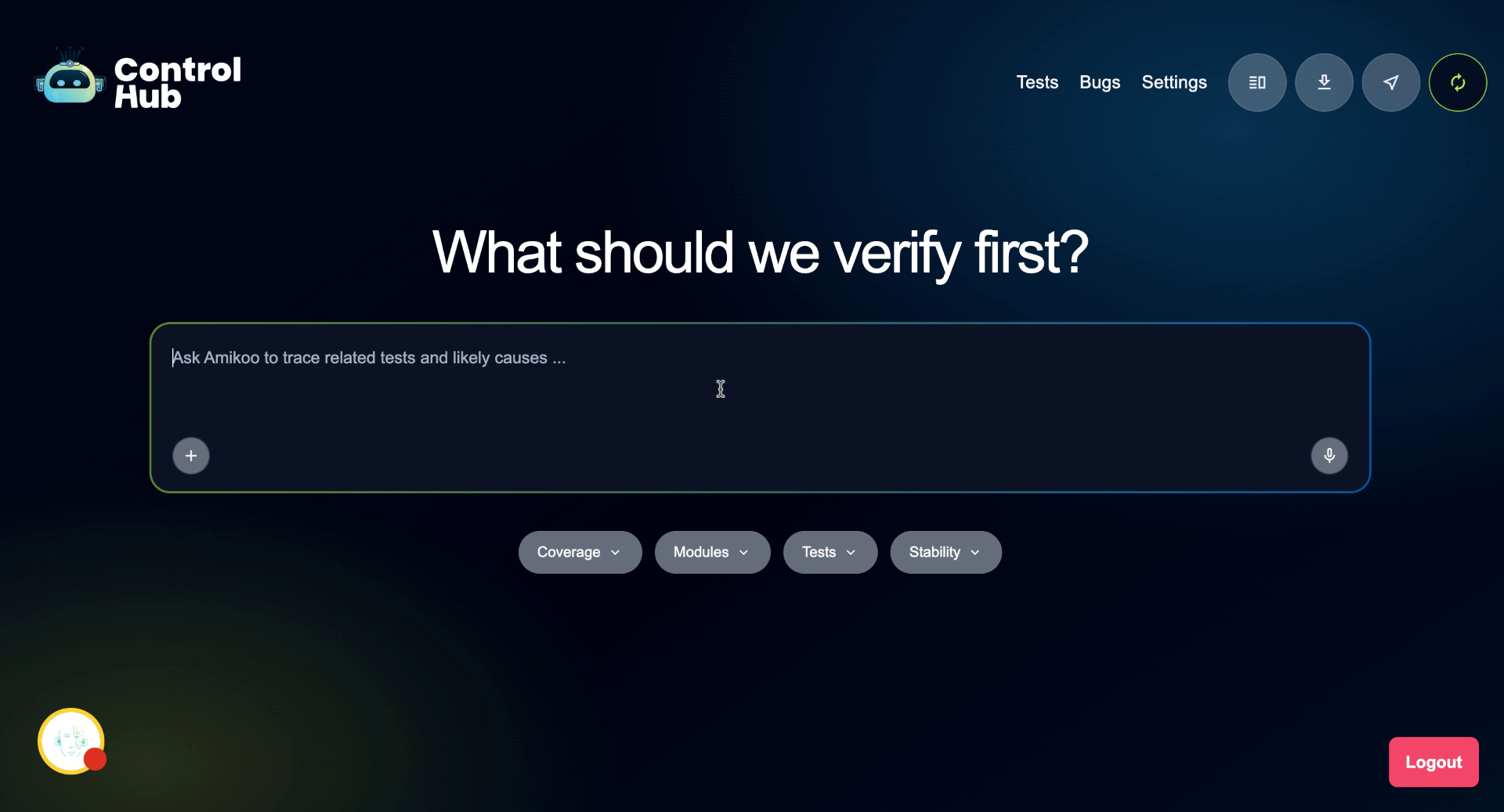
Go to qa.amikoo.ai
1. Introduction To Test View
This tutorial covers the Test View — where you can explore, filter, and review all the tests in your connected repository.
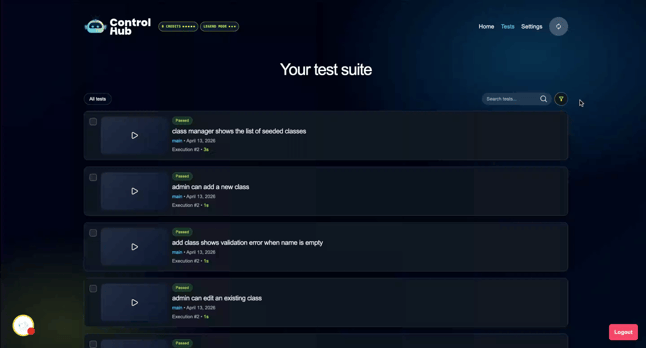
2. View Test List In Repository
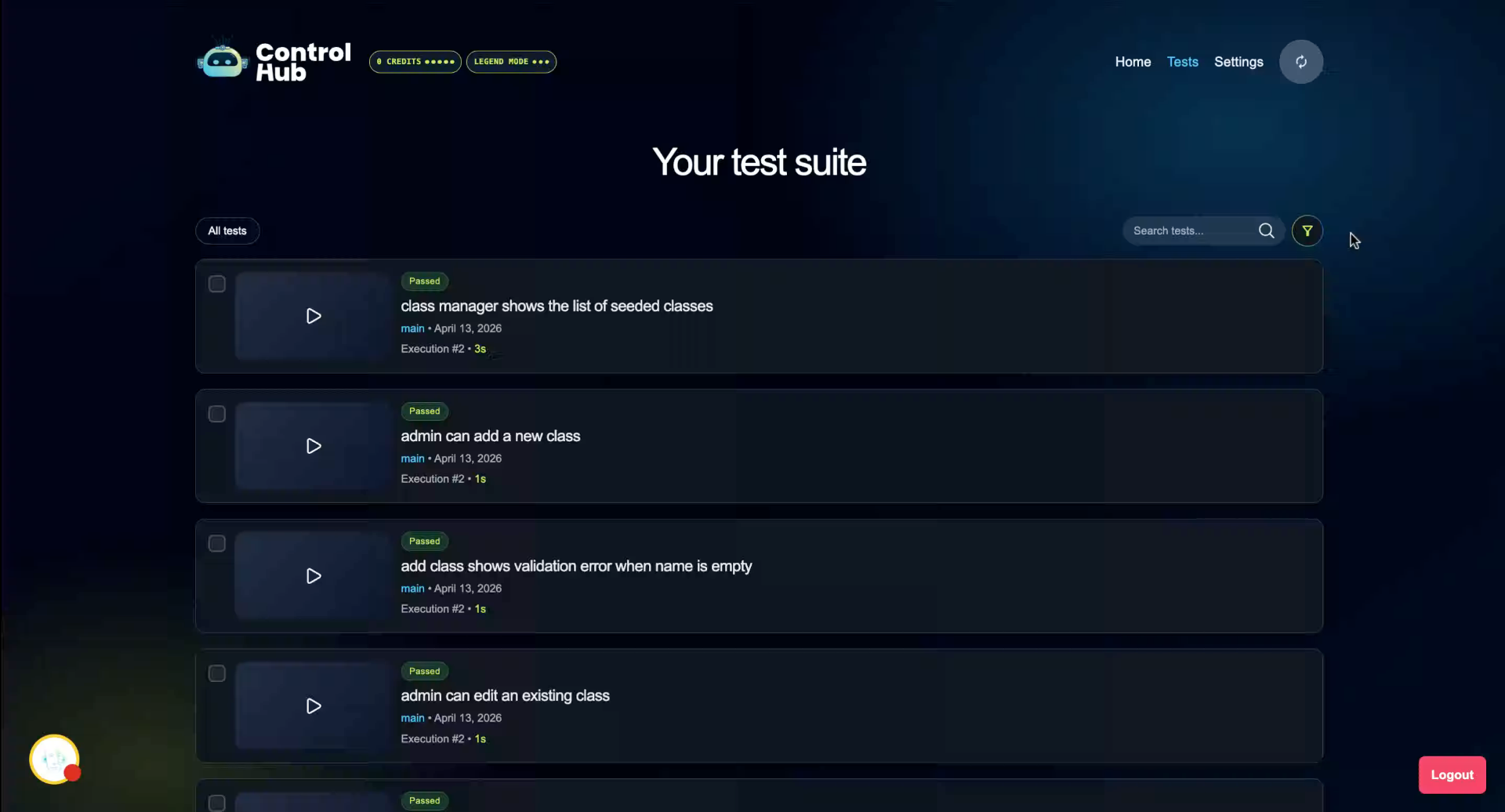
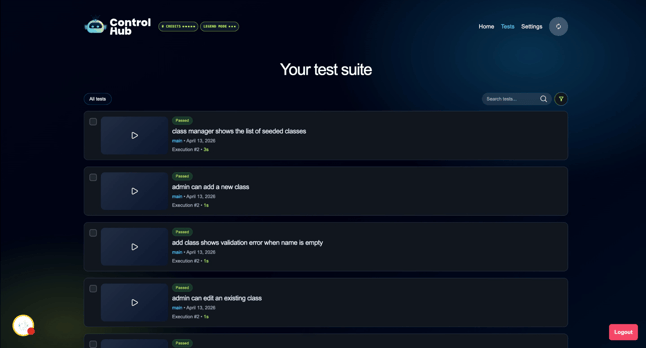
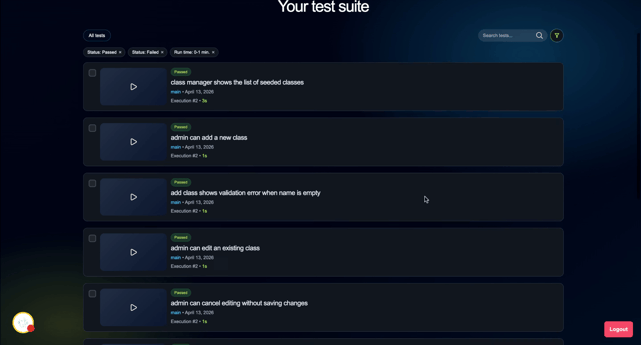
The Test View displays a complete list of all tests available in your test repository.
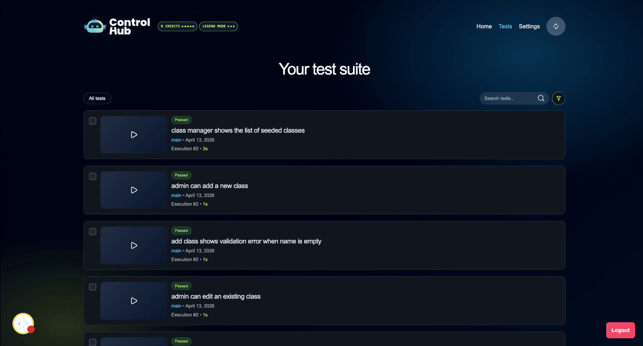
3. Check Last Execution Status
Each test shows the status of its most recent execution. In this example, the test passed, ran for three seconds on the main branch, and has been executed twice.
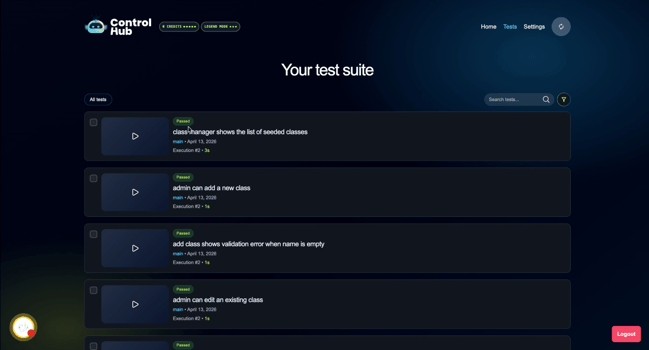
4. Understand Execution Count
The execution count reflects how many times a test has been run. Each time the test is executed, the count increases accordingly
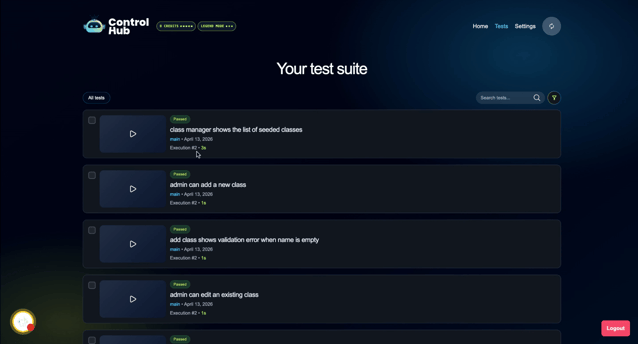
5. Review Last Run
The date shows when the test was most recently executed.
6. Use Search And Filter Options
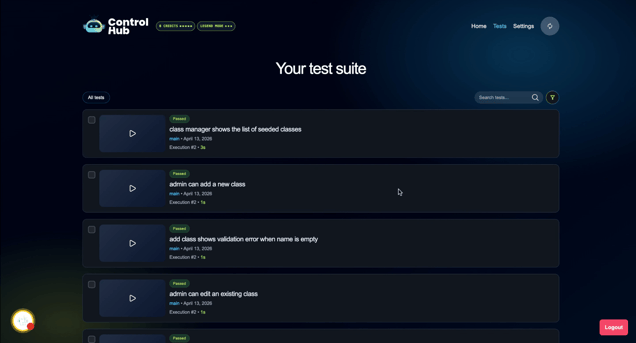
The Test View includes a search bar and several filters to help you quickly find specific tests.
7. Search Tests By Keyword
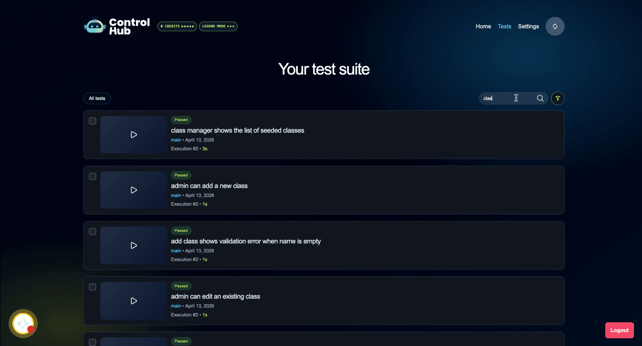
Use the search bar to find tests by name. For example, searching "class" or "class manager" will return all tests with those terms in their name.
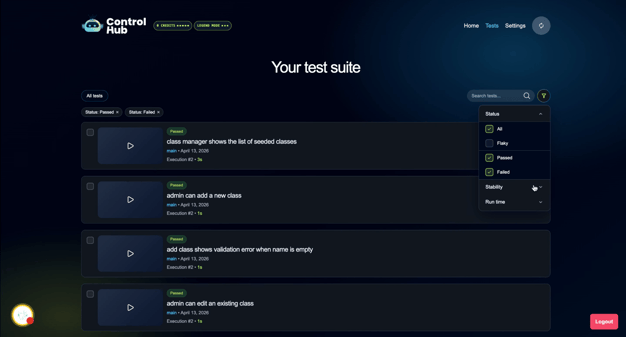
8. Filter Tests By Status: Passed
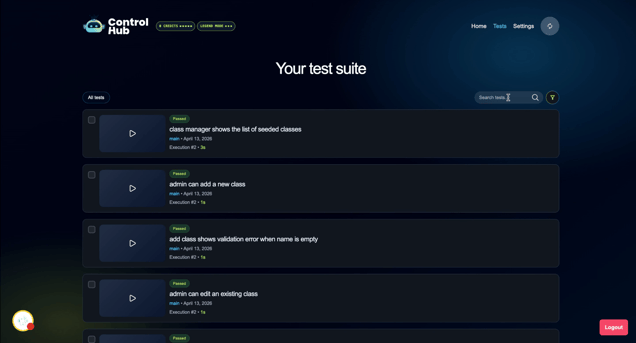
Filter your tests by status to narrow down results. Selecting "Passed" will show only tests that have passed, hiding any failed tests from the list.
9. Filter Tests By Status: Failed
Selecting "Failed" will display only the tests that have not passed, making it easy to focus on what needs attention.
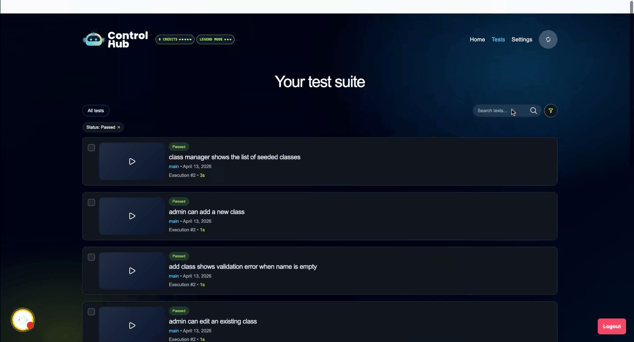
10. Filter By Stability
The stability filter shows how consistently a test passes over time. This metric requires enough runs to calculate — make sure your tests are executed regularly so Amikoo can determine their stability.
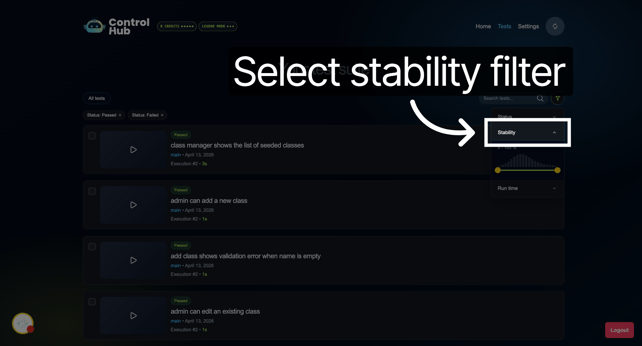
11. Select Stability Filter
Select the stability filter to view tests sorted or filtered by their stability metric.
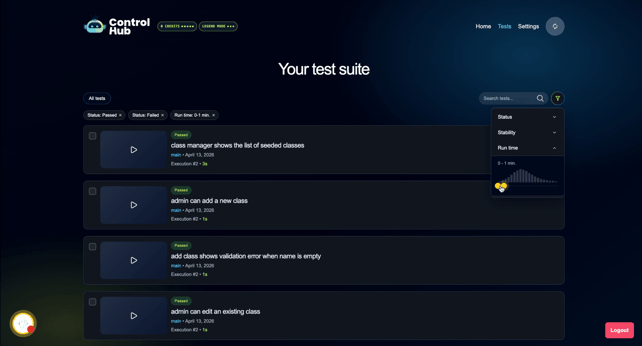
12. Filter Tests By Runtime
The runtime filter lets you find tests within a specific duration range. For example, filtering for tests above one minute will return no results if all your tests run under a minute, while filtering for zero to one minute will display all of them.
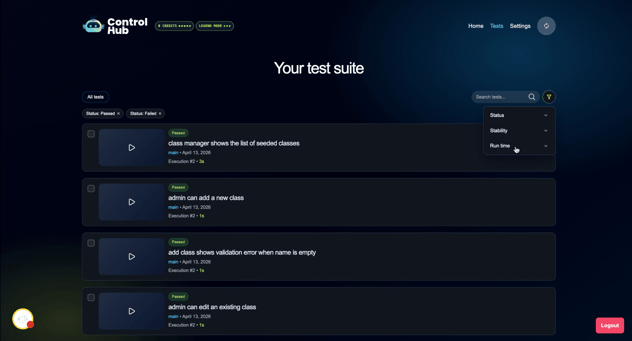
13. Adjust the Runtime Range
Refine the runtime range as needed to find tests that fall within a specific execution window.
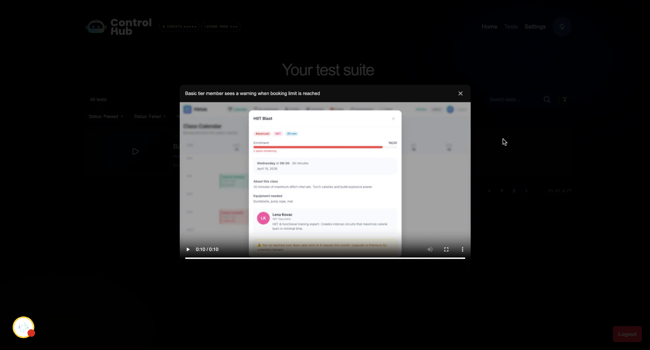
14. View an Execution Video
Click on any test card video button to open a modal with a recording of that execution. This is especially useful for reviewing what happened during a failed run.
15. Analyze Failed Execution
Use the execution video to investigate what went wrong and gather insights into the cause of the failure.
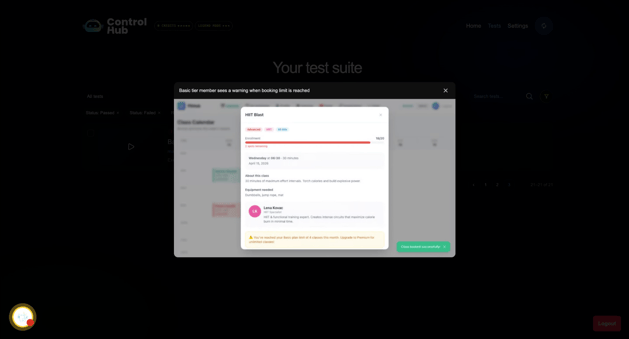
16. Close Execution View
Click outside the modal to close it and return to the Test View.
This tutorial walked you through the Test View in Amikoo, including how to browse your test list, check execution statuses, apply filters, and review execution recordings. You can now efficiently manage and analyze your tests using these features.