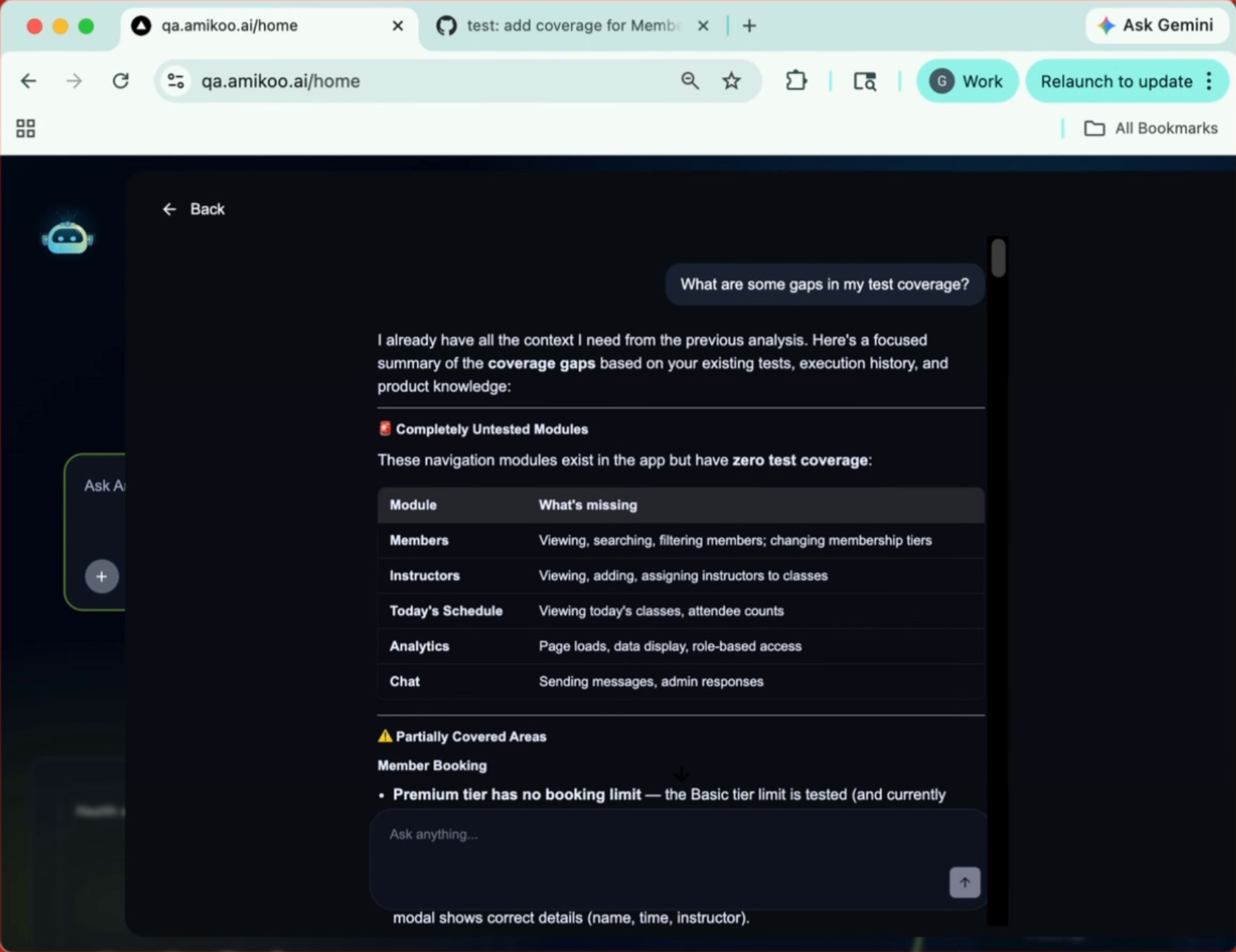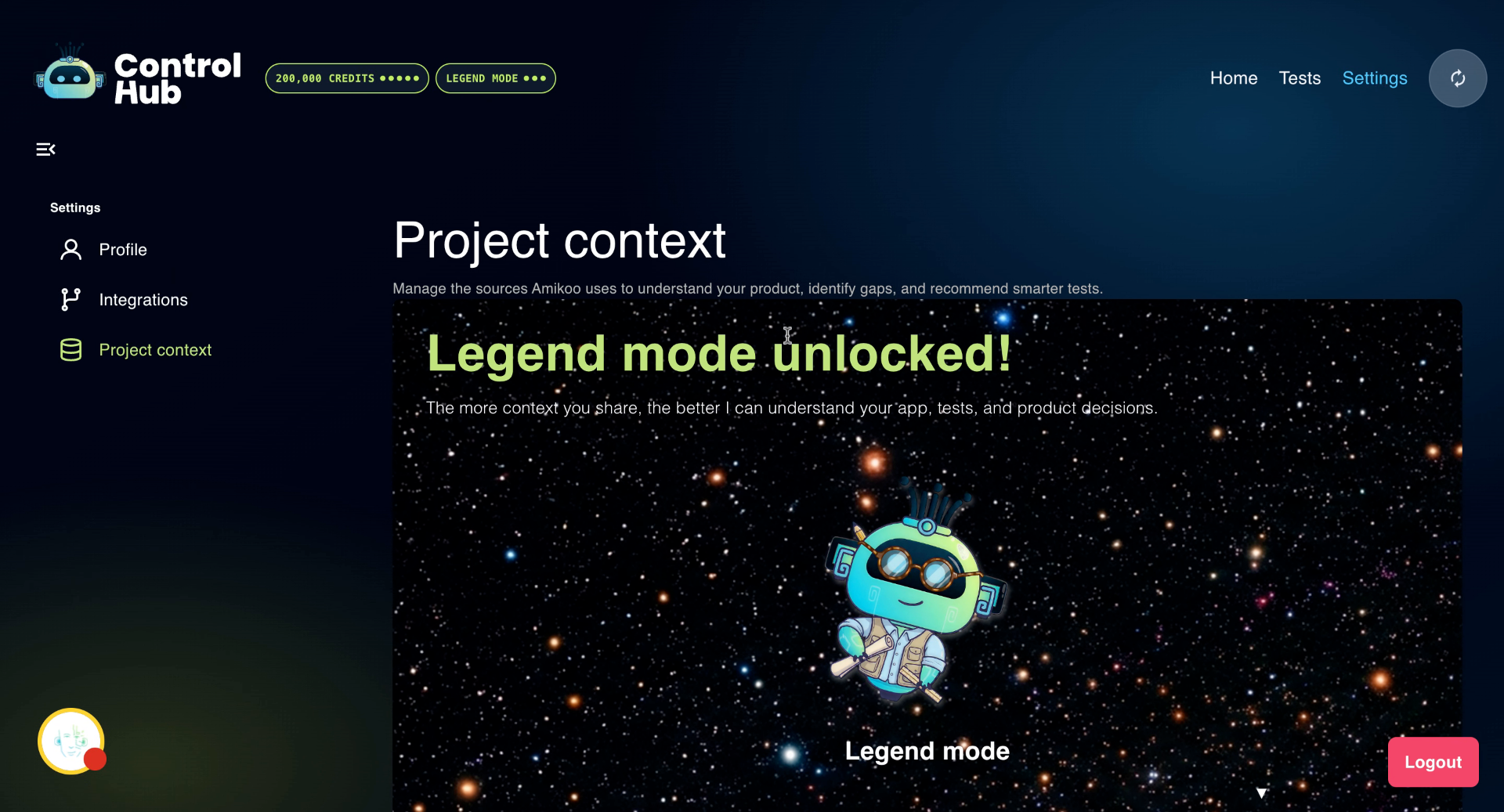
This tutorial walks you through connecting your GitHub repository to Amikoo and completing the initial setup.
Pre-Requisites
-
A GitHub account with at least one repository
-
An app repository or a tests repository
-
An application URL (required for app access setup)
1. Introduction
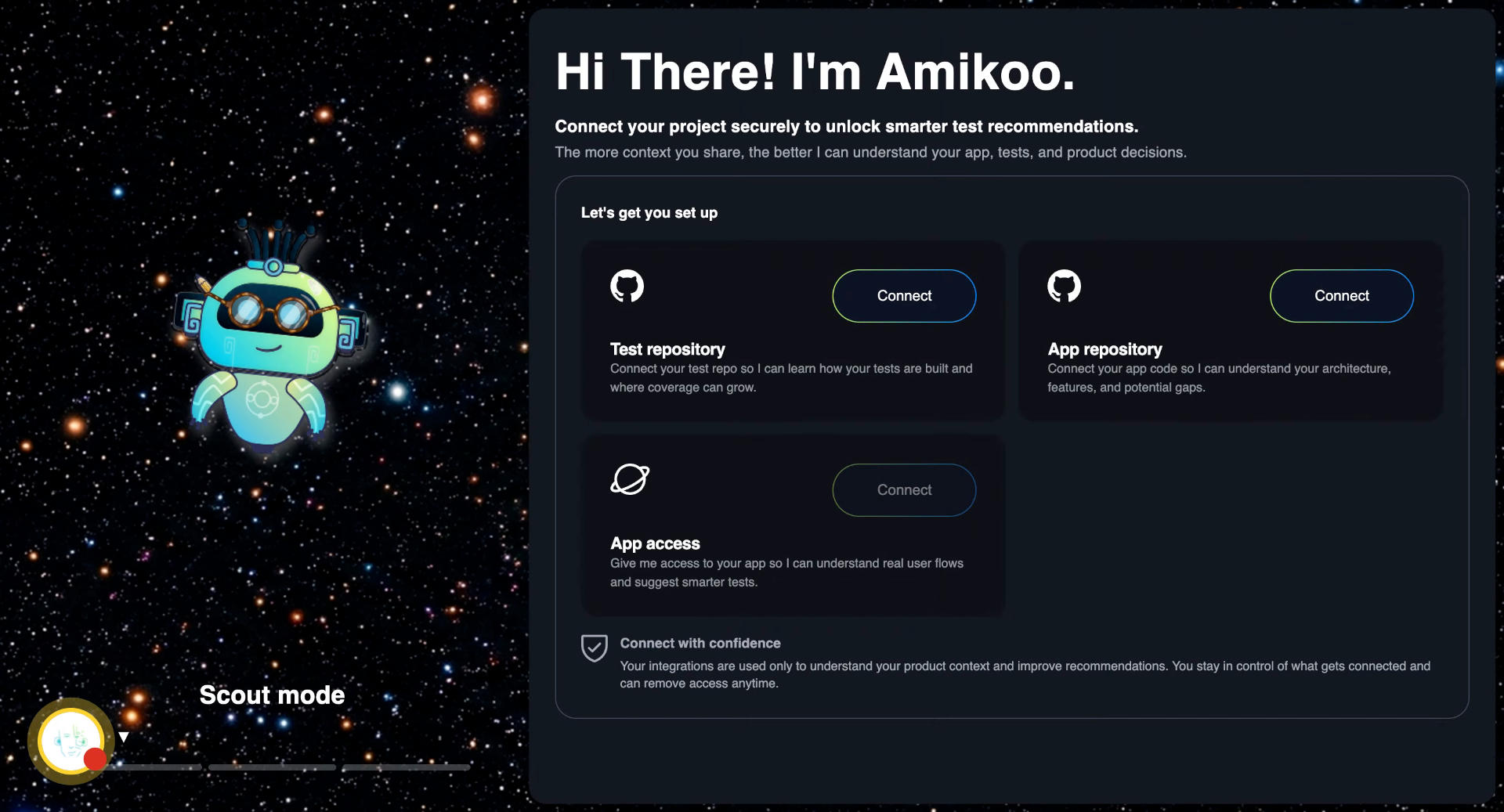
You'll learn how to link your GitHub repositories and configure your application details. Go to qa.amikoo.ai
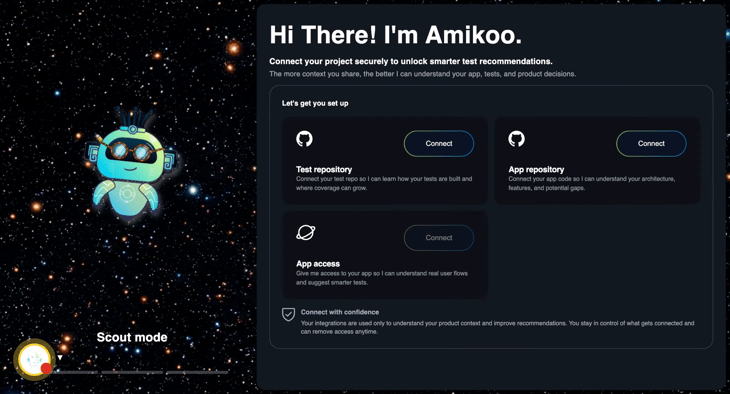
2. Initiate Connection
Click "Connect" to start linking your GitHub repository with Amikoo.
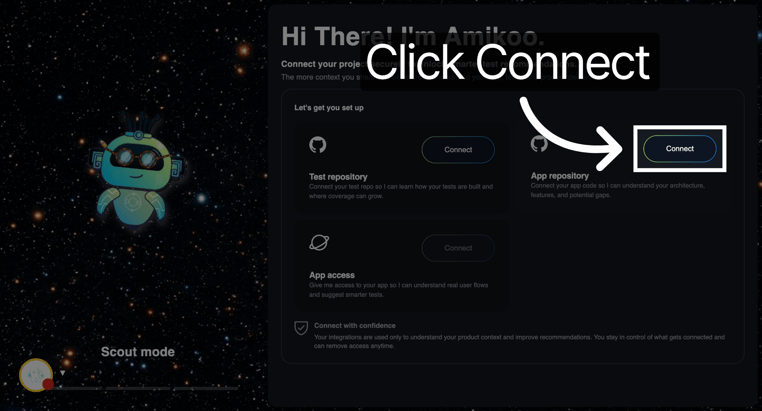
3. Confirm Connection
Click "Connect" again to continue with the integration.
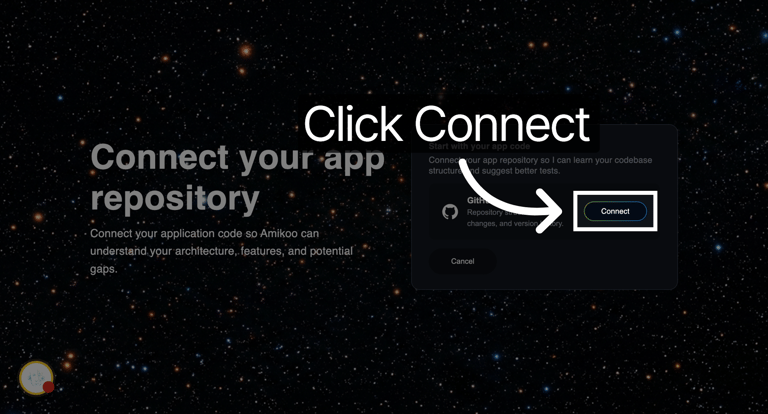
4. Redirected to GitHub
You'll be redirected to GitHub to authorize Amikoo's access to your repository.
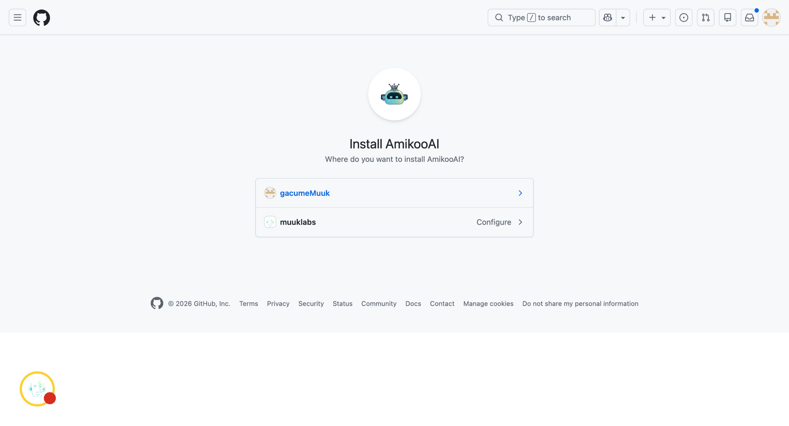
5. Select a GitHub Account
Choose the GitHub account you'd like to use for the integration.
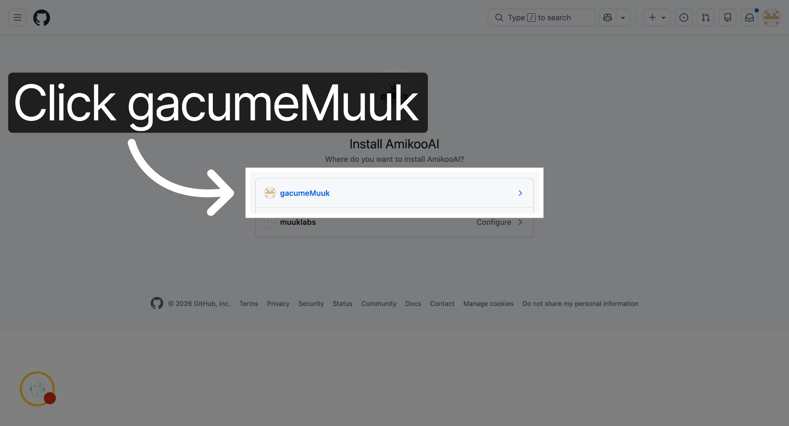
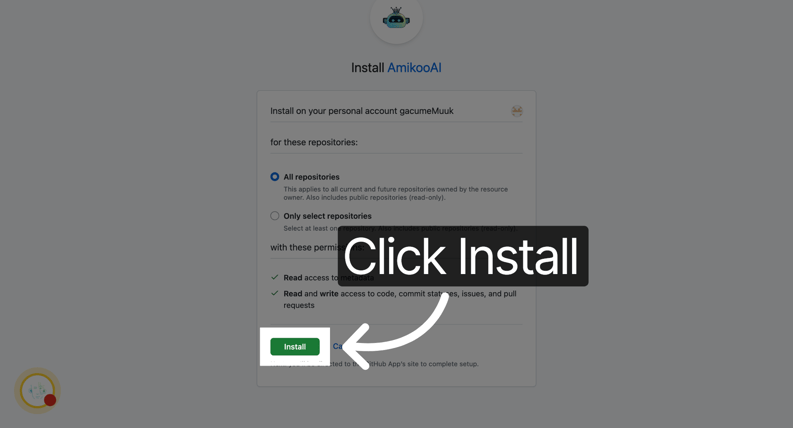
6. Install the AmikooAI App
Click "Install" to add AmikooAI to your GitHub account. You can grant access to all repositories or select specific ones.
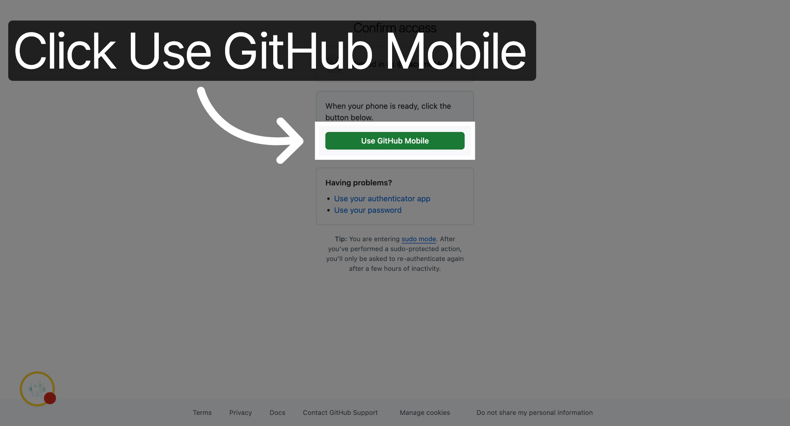
7. Authorize via GitHub Mobile
Click "Use GitHub Mobile" to confirm access through the GitHub mobile app.
8. Redirected to Amikoo Dashboard
Once authorized, you'll be taken back to the onboarding screen to continue setting up your repository connection.
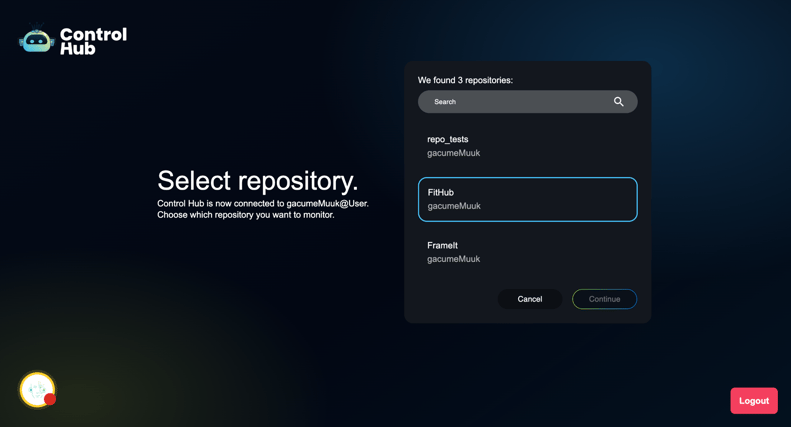
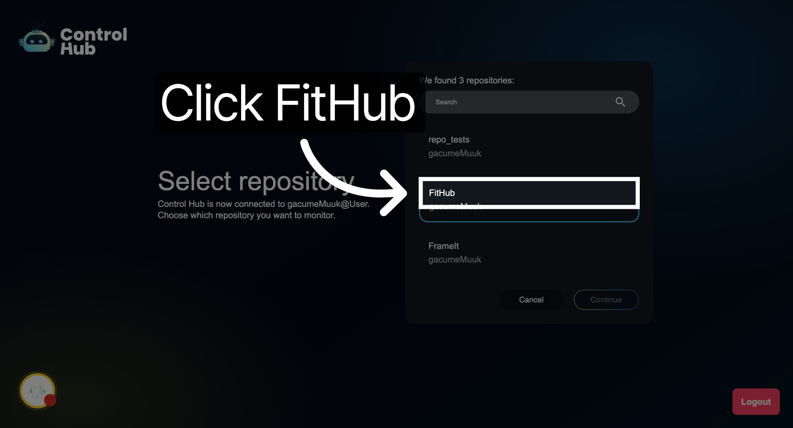
9. Select a Repository
Choose the repository you want to connect to Amikoo.
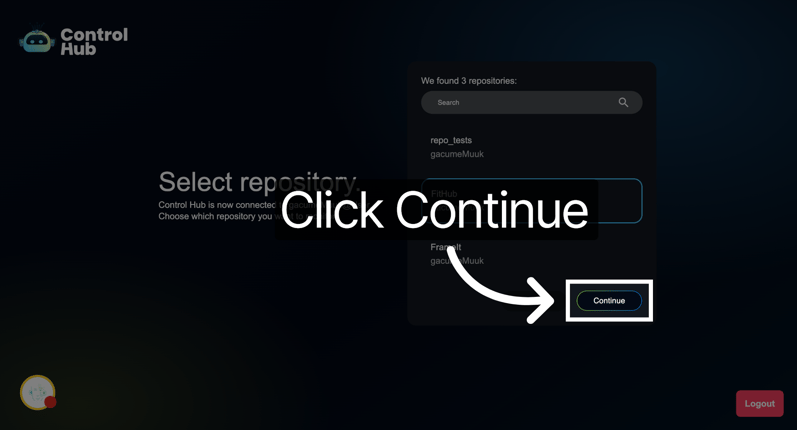
10. Continue with Setup
Click "Continue" to move forward with the repository configuration.
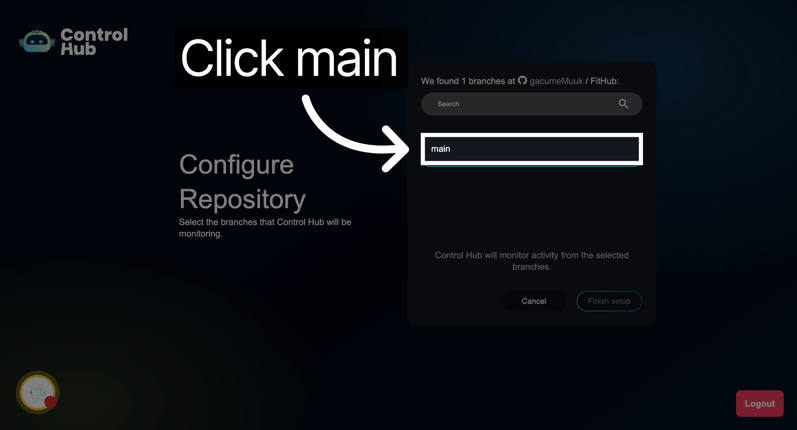
11. Choose a Branch
Select the branch you'd like to use for the integration.
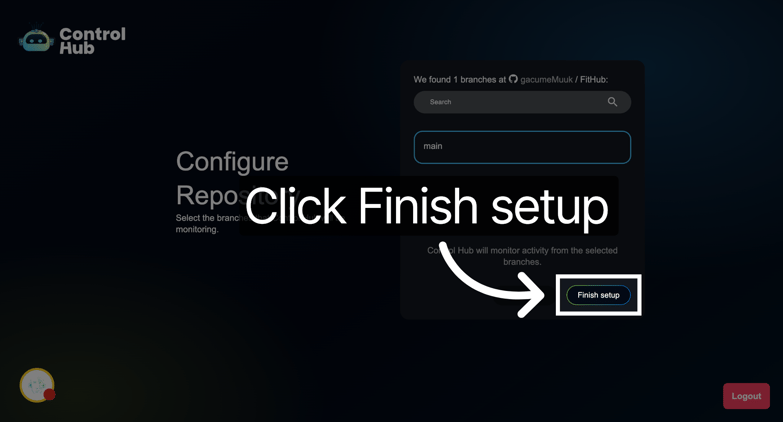
12. Finish Repository Setup
Click "Finish Setup" to complete the repository connection.
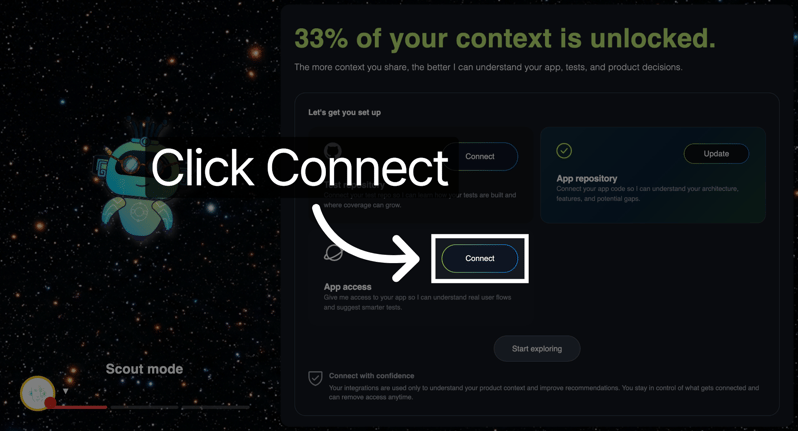
13. Connect Your App
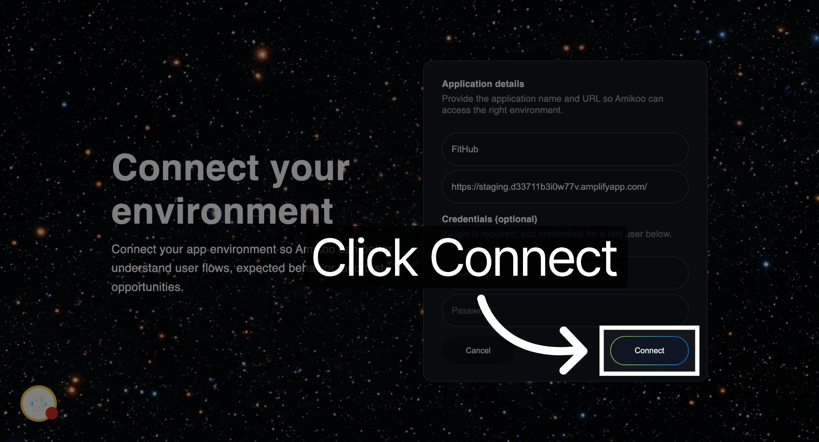
Click "Connect" to link your application to Amikoo. An application URL is required; credentials are optional.
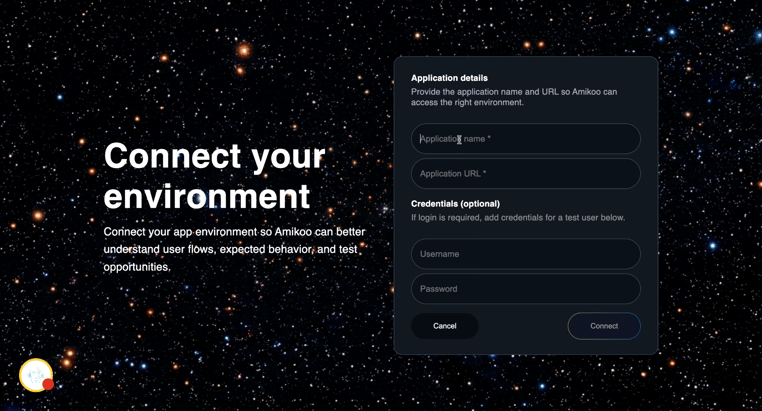
14. Enter Your Application Name
Type your application name (e.g., "FitHub") in the provided field.
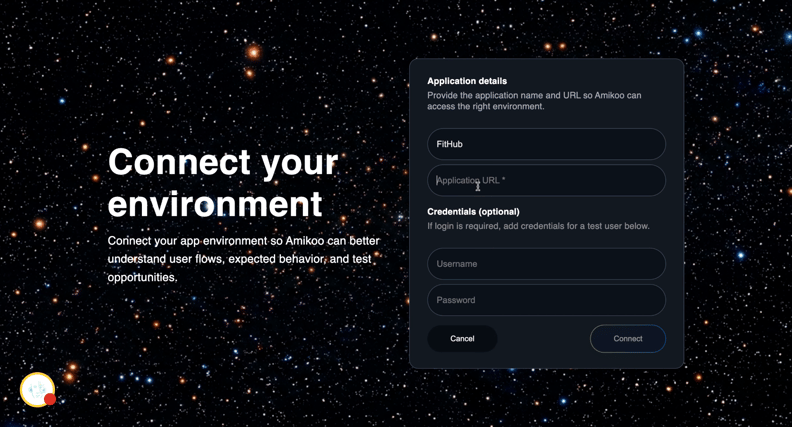
15. Enter Your Application URL
Type your application URL in the provided field.
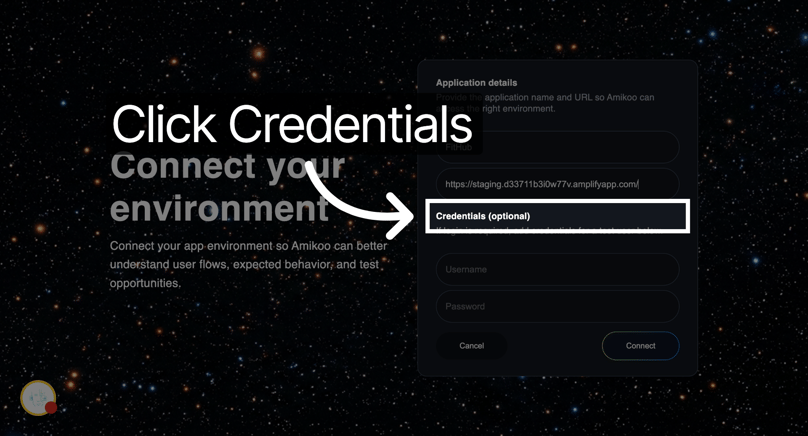
16. Credentials (Optional)
Application credentials are not required and can be skipped.
17. Finalize the Connection
Click "Connect" to complete your application setup and link it to Amikoo.
18. Start Exploring Amikoo
Click "Start Exploring" to enter the Amikoo platform and begin using its features.
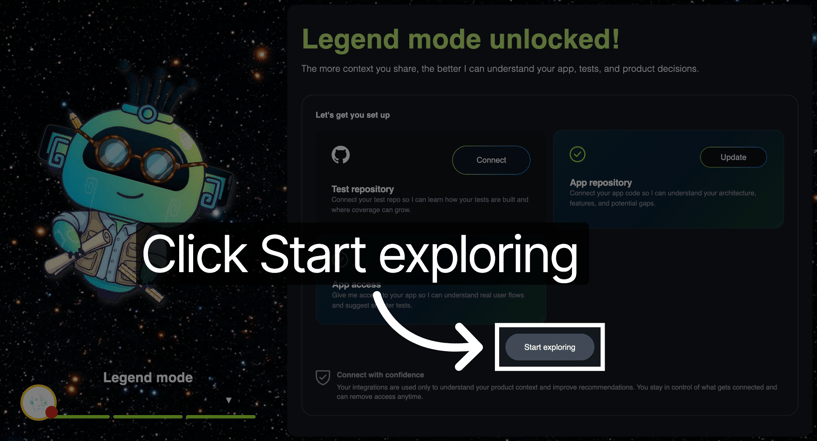
You've successfully connected your GitHub repository to Amikoo, configured your application, and completed the initial setup. You're ready to start exploring Amikoo and managing your projects.