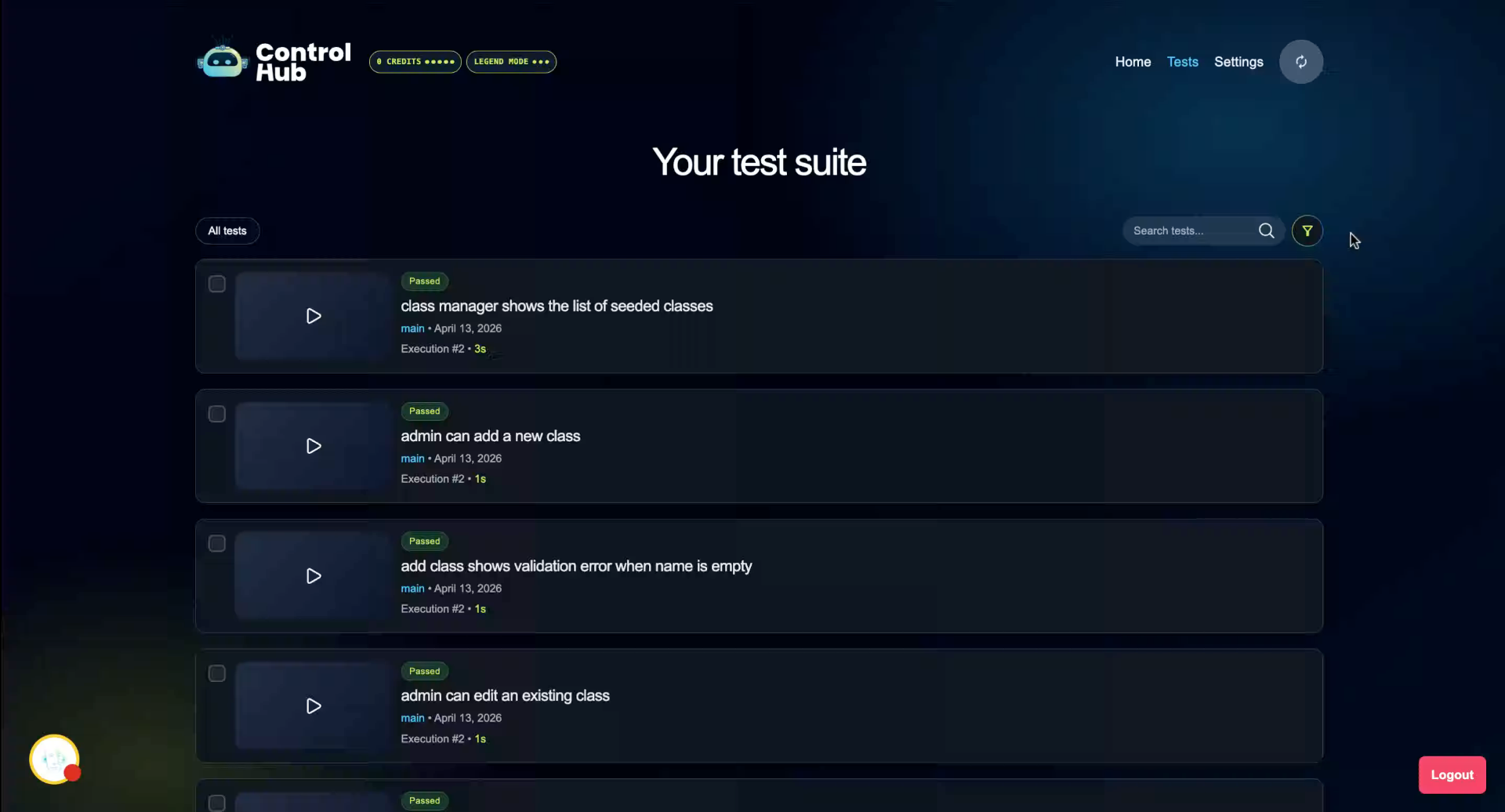
Amikoo Home Overview

Amikoo Home Overview

00:00: This tutorial introduces you to the Amikoo homepage and its key features.

00:04: You'll learn how to navigate and interact with Amikoo to monitor and manage your test

00:08: executions effectively.

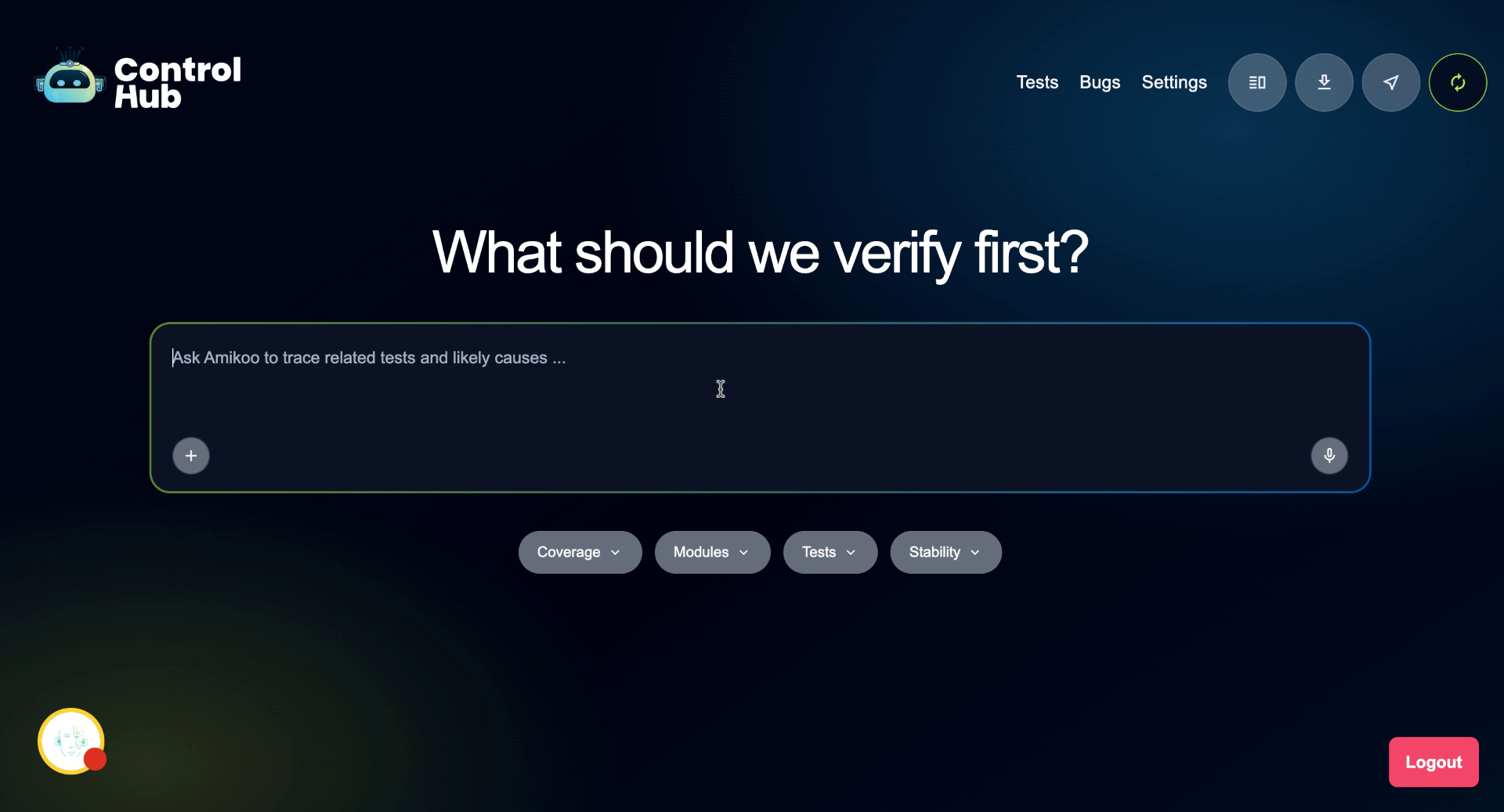
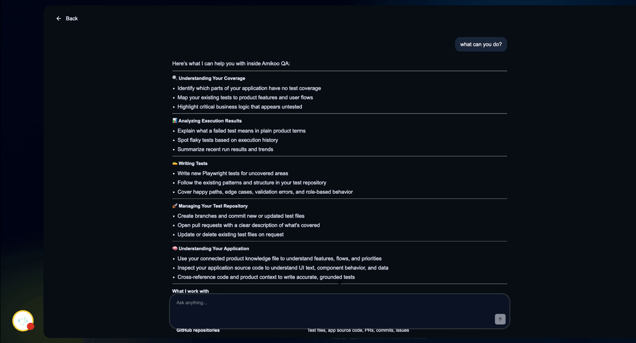
00:11: The homepage opens with the AmikooChat interface. You can ask Amikoo anything — for example,

00:15: typing "What

00:16: can you do?"

00:18: will switch to chat mode and return a summary of Amikoo's capabilities.

00:26: Amikoo can help with a range of tasks including understanding test coverage,

00:30: analyzing execution results, writing tests, managing your test repository, and

00:35: learning about your application.

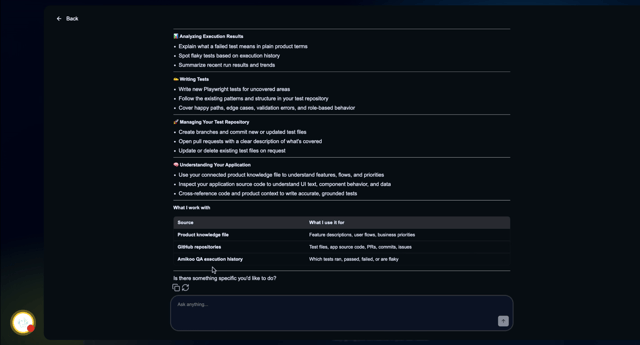
00:37: It can work with your Amikoo QA execution history, connected GitHub repositories,

00:41: and any product knowledge files

00:43: you've provided.

00:44: If you have something specific in mind, type it directly into the prompt field to get

00:48: started right away.

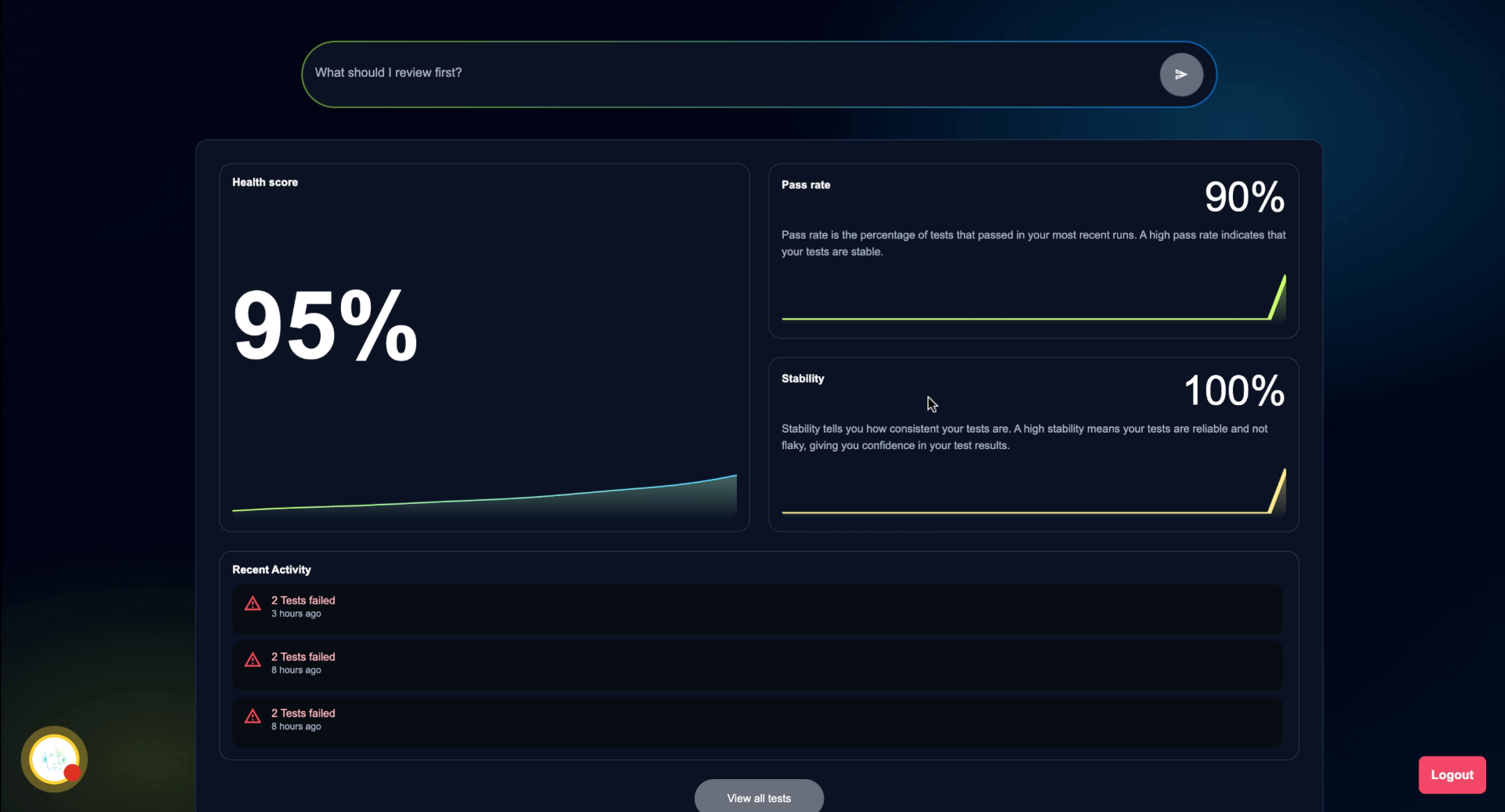
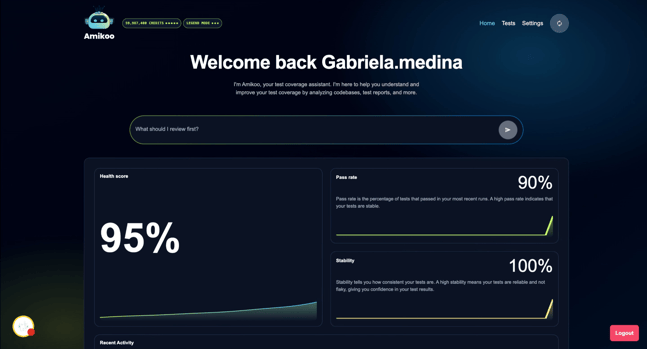
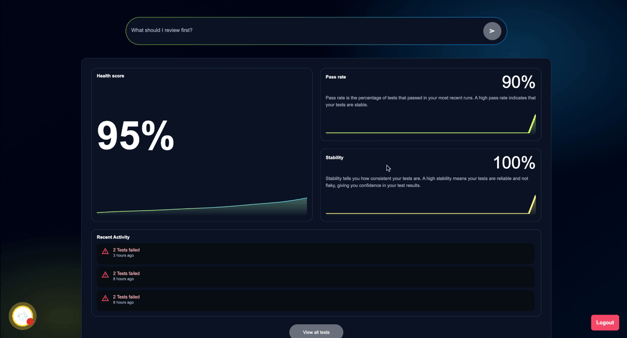
00:57: Below the chat, you'll find your key test metrics.

00:59: The health score is calculated based on your pass rate and test stability.

01:04: The pass rate shows how many of your tests are currently passing, and the stability

01:08: score indicates how consistent and reliable your tests are over time.

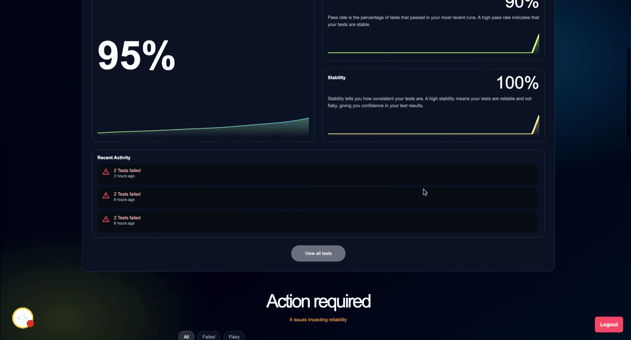
01:12: The Recent Activity section shows your latest test runs. In this example, two tests

01:17: have been consistently failing — with failures recorded eight hours ago and again

01:21: three hours ago.

01:23: The Action Required section highlights issues that are impacting your test

01:26: reliability.

01:27: Issues are flagged as either failed or flaky. In this example, only failed tests are

01:32: present,

01:33: so no flaky tests appear.

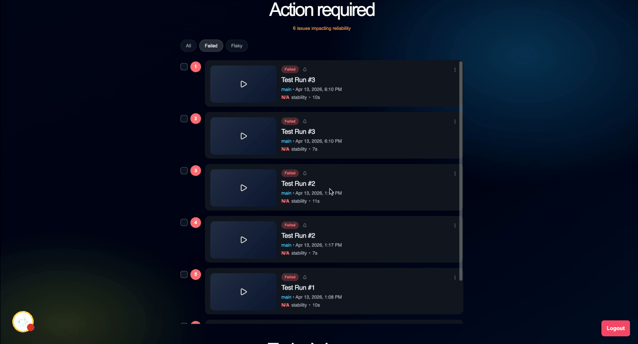
01:35: The iterations view shows the same failing tests across different test runs.

01:40: Each run includes a video recording — if the failure had a different cause, the

01:44: video would reflect that difference.

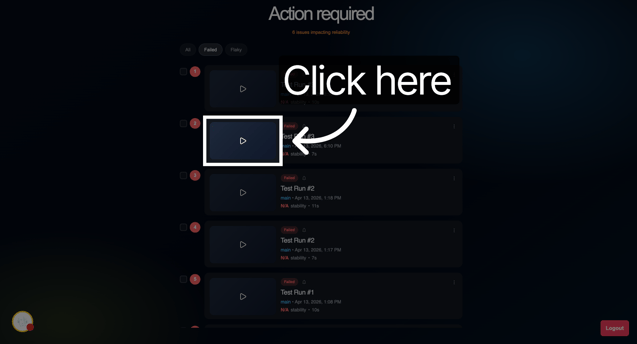
01:49: Click through to access the video and get a more detailed breakdown of any test run

01:53: or issue.

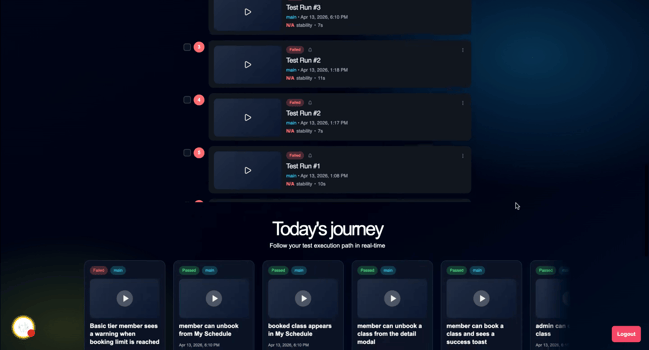
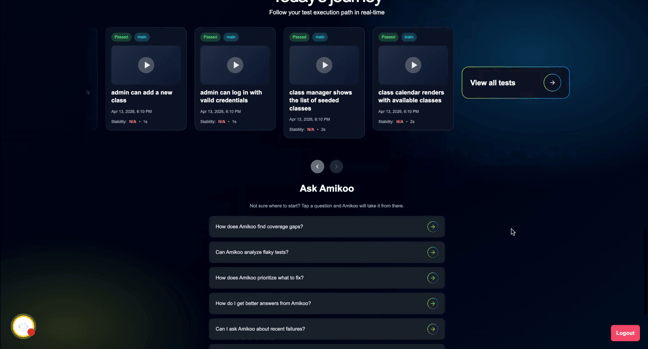
01:55: The Today's Journey section displays your most recent test executions in sequence.

02:00: You can view up to 20 executions and scroll horizontally to browse them.

02:04: At the end of the list we have a button that takes us to the test view.

02:08: At the bottom of the homepage, suggested questions

02:10: give you quick starting points for interacting with Amikoo.

02:14: You can select one of these or type your own question directly.

02:17: This tutorial provided a comprehensive overview of the Amikoo homepage, including

02:21: the chat interface, test metrics, recent failures, action required issues, and today's

02:27: execution journey.

02:28: You can now confidently navigate the homepage and use Amikoo's features to stay on top

02:33: of your testing.

This tutorial introduces you to the Amikoo homepage and its key features. You'll learn how to navigate and interact with Amikoo to monitor and manage your test executions effectively.

 1. Interact with Amikoo Chat

The homepage opens with the AmikooChat interface. You can ask Amikoo anything — for example, typing "What can you do?" will switch to chat mode and return a summary of Amikoo's capabilities.


2. Explore Amikoo Capabilities

Amikoo can help with a range of tasks including understanding test coverage, analyzing execution results, writing tests, managing your test repository, and learning about your application. It can work with your Amikoo QA execution history, connected GitHub repositories, and any product knowledge files you've provided.


3. Enter Specific Task Prompt

If you have something specific in mind, type it directly into the prompt field to get started right away.
  

4. Understand Test Metrics

Below the chat, you'll find your key test metrics. The health score is calculated based on your pass rate and test stability. The pass rate shows how many of your tests are currently passing, and the stability score indicates how consistent and reliable your tests are over time.
  

5. Review Recent Test Failures

The Recent Activity section shows your latest test runs. In this example, two tests have been consistently failing — with failures recorded eight hours ago and again three hours ago. 
  

6. Check Action Required Issues

The Action Required section highlights issues that are impacting your test reliability. Issues are flagged as either failed or flaky. In this example, only failed tests are present, so no flaky tests appear.
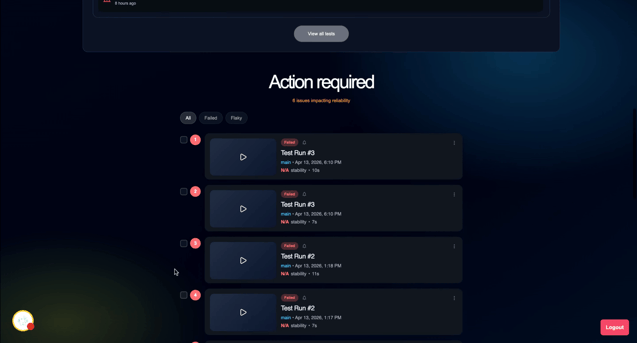
  

7. View Test Run Iterations and Videos

The iterations view shows the same failing tests across different test runs. Each run includes a video recording — if the failure had a different cause, the video would reflect that difference.
 

8. Access Video

Click through to access the video and get a more detailed breakdown of any test run or issue.
  

9. Explore Today's Test Execution Journey

The Today's Journey section displays your most recent test executions in sequence. You can view up to 20 executions and scroll horizontally to browse them. At the end of the list we have a button that takes us to the test view.
  

10. Ask Questions to Amikoo

At the bottom of the homepage, suggested questions give you quick starting points for interacting with Amikoo. You can select one of these or type your own question directly.
 

This tutorial provided a comprehensive overview of the Amikoo homepage, including the chat interface, test metrics, recent failures, action required issues, and today's execution journey. You can now confidently navigate the homepage and use Amikoo's features to stay on top of your testing.