This tutorial walks you through understanding and managing your account settings. You'll learn how to navigate your profile information, integrations, and project context to customize your Amikoo experience.
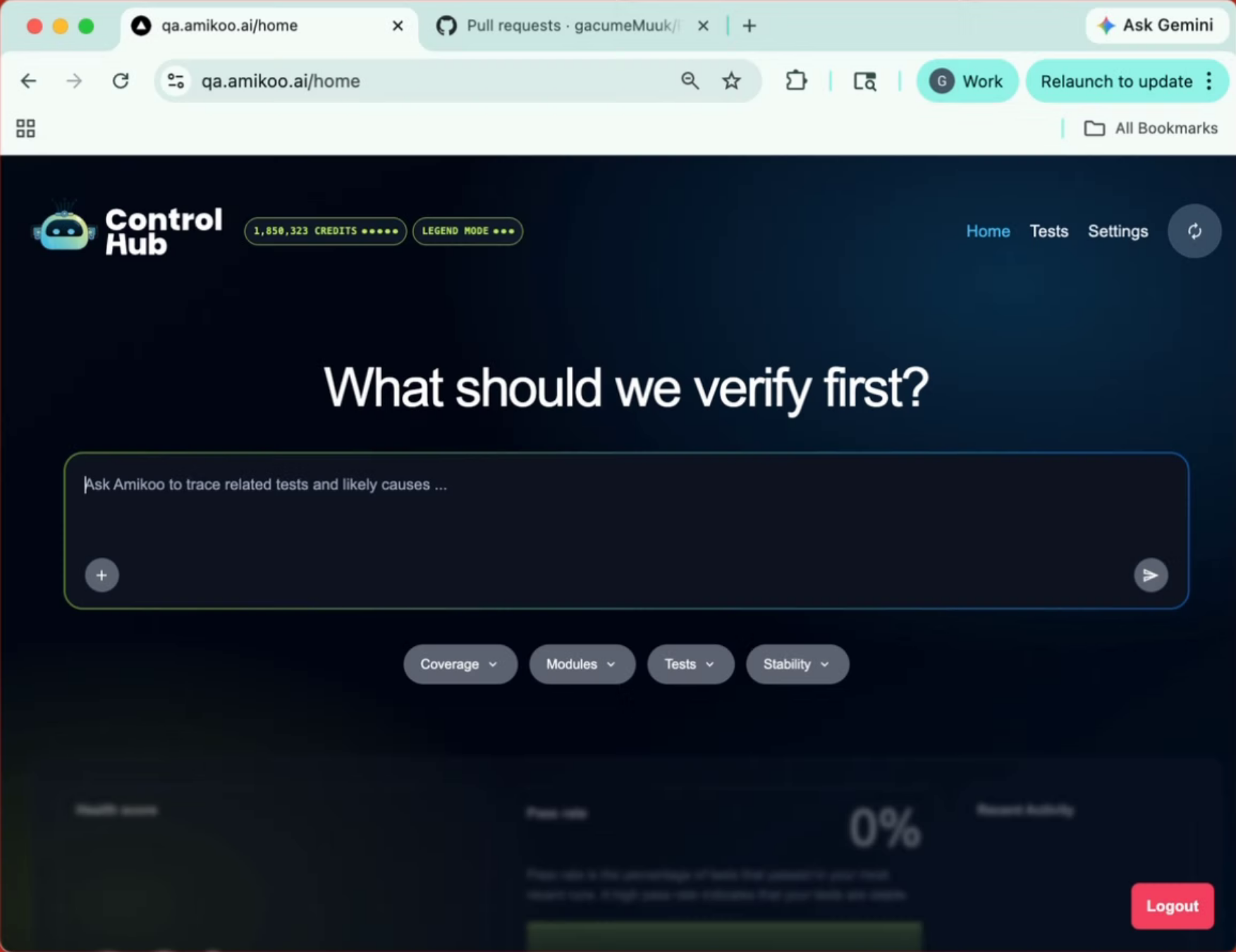
Go to qa.amikoo.ai
1. Introduction To Settings
In this tutorial, you'll get an overview of the Settings page and everything you can manage from it.
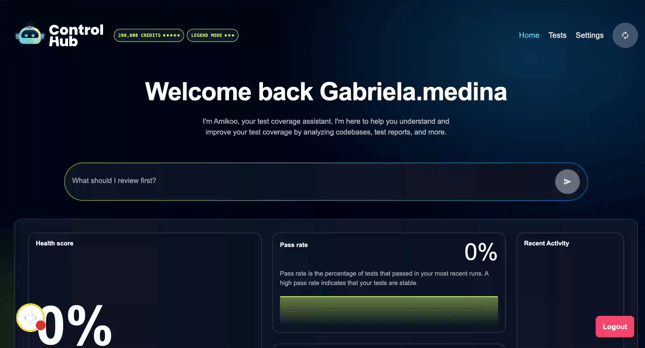
2. Locate Settings Button
From the homepage, find the Settings button in the top-right corner and click it to get started.
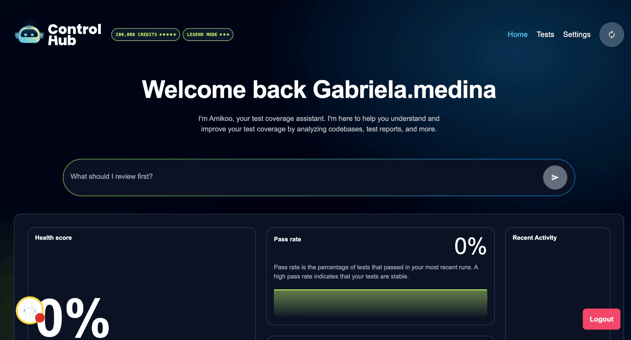
3. Open Settings Page
The Settings page opens, giving you access to all your account preferences and configurations.
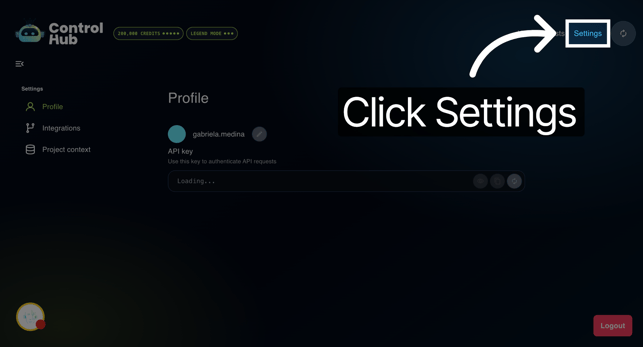
4. Review Settings Pages
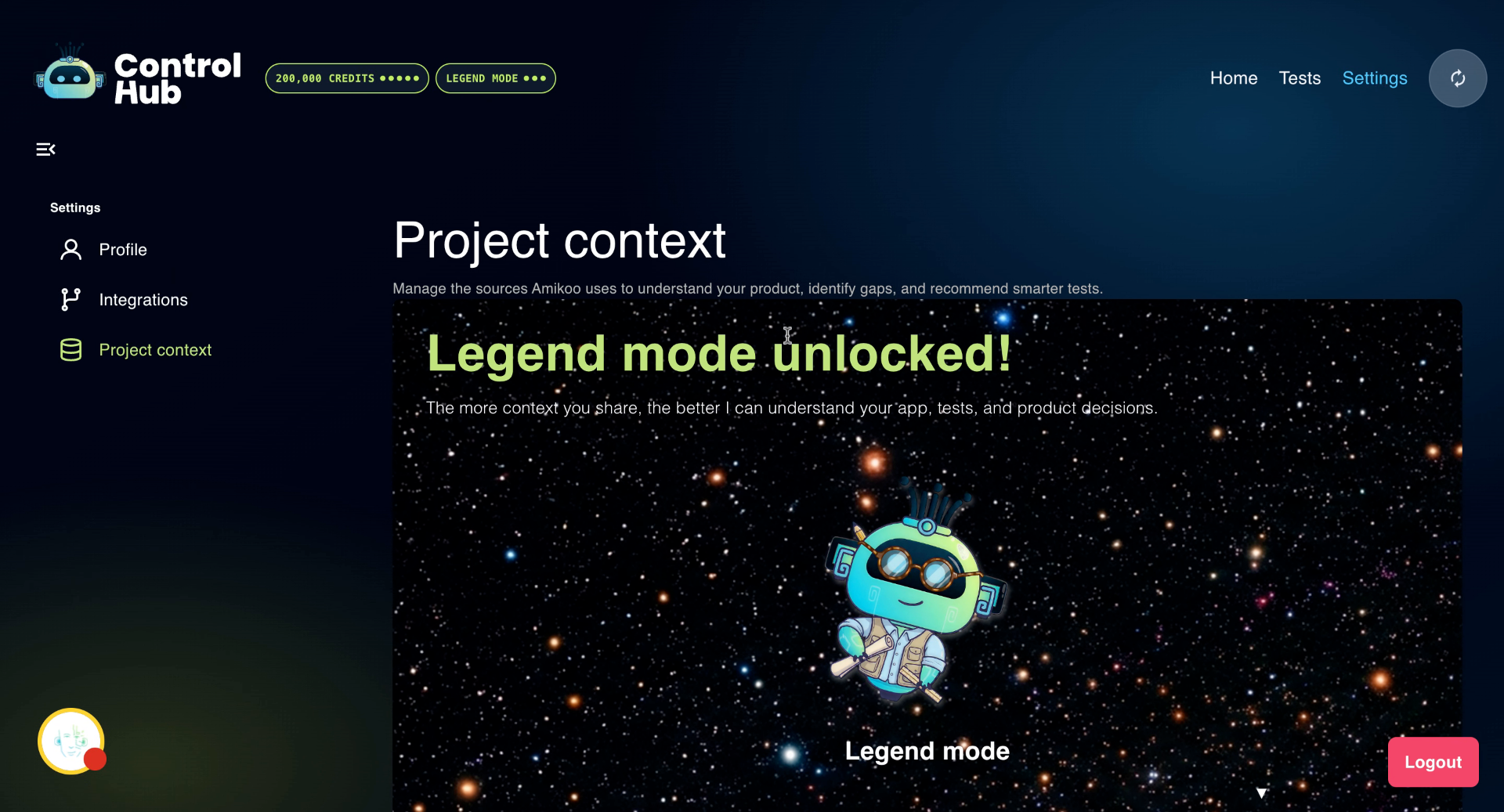
The Settings page is organized into three tabs — Profile, Integrations, and Project Context — each covering a different area of your account.
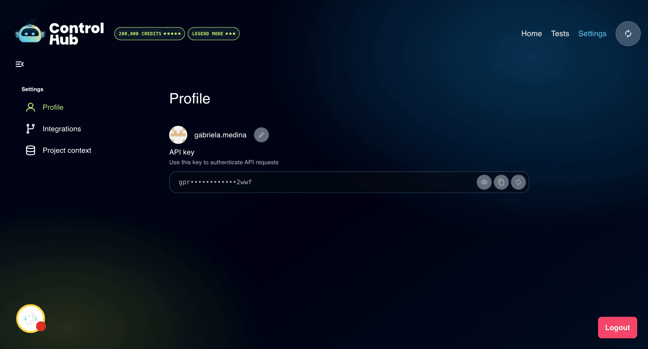
5. View Profile Information
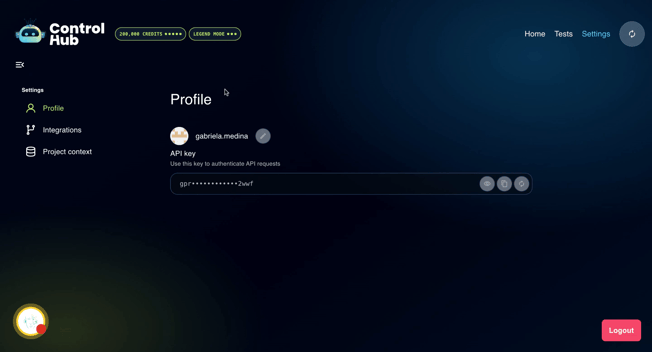
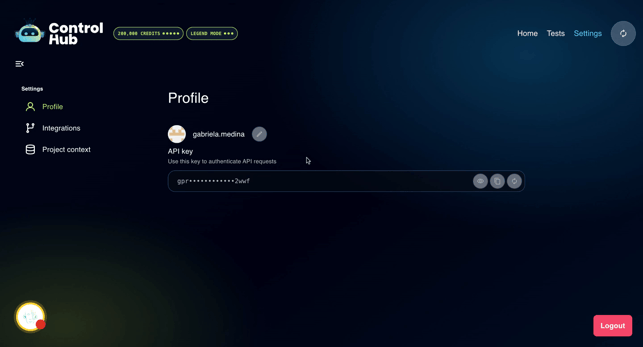
The Profile tab displays your name and your API key, which is used to authenticate your account with Amikoo.
6. Understand API Key Usage
Your API key is required when installing the Amikoo reporter package via NPM, as it allows your execution results to be sent to Amikoo by adding your key to the .env file on your repo.
7. Access Integrations Tab
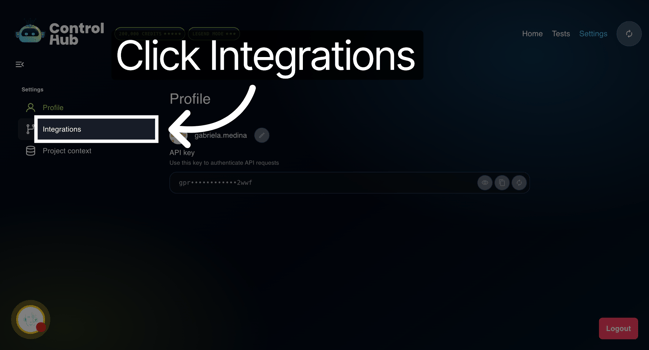
Click the Integrations tab to view and manage your connected services.
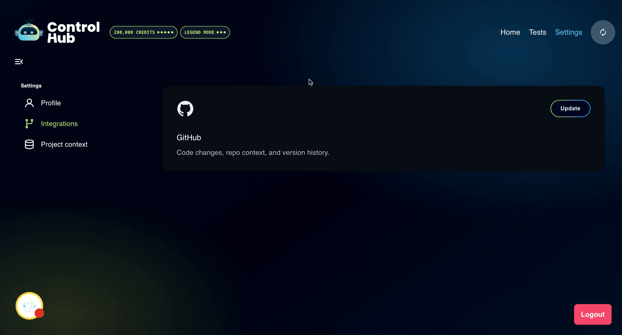
8. Manage GitHub Integrations
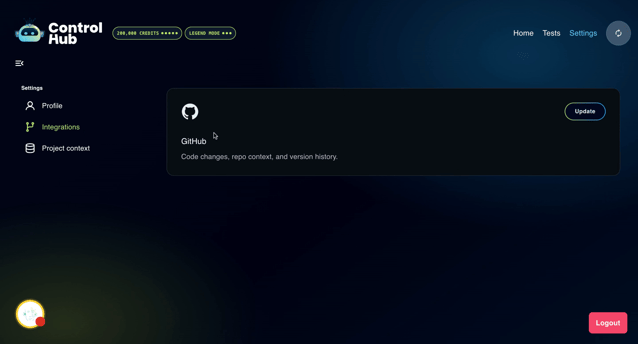
GitHub is currently the available integration. From here you can update your connection, add more repositories, reduce access, or keep your current setup — all managed from this tab.
9. Add Project Context
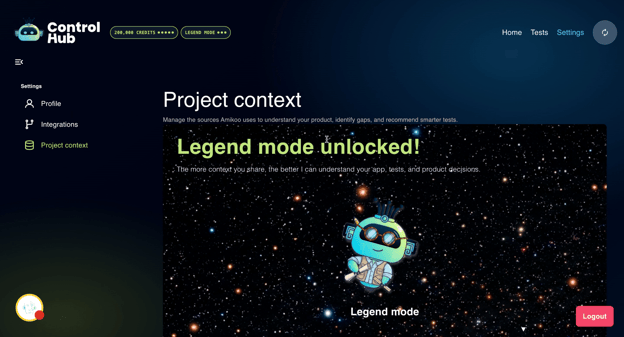
The Project Context tab lets you add or update context for your project. If you skipped this step during onboarding, you can complete it here at any time.
10. Different modes for different context percentages
Your current context mode reflects how much project context has been provided. Legend mode, for example, indicates that all available context has been added.
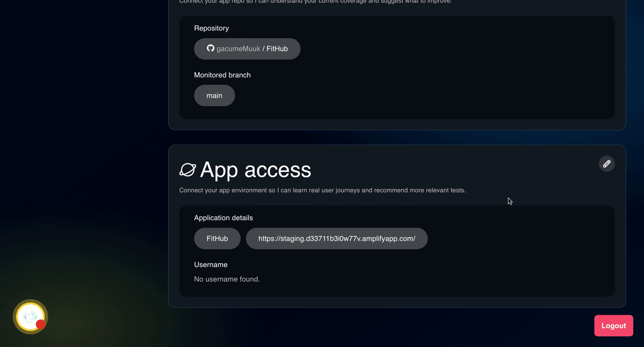
11. Check App And Test Repositories
This section displays your app access, app repository, and test repository all in one place.
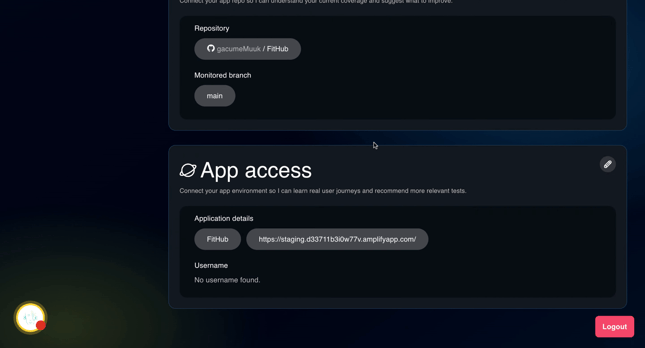
12. Note Optional Credentials
If no username appears under App Access, that's expected — credentials are optional and not required to proceed.
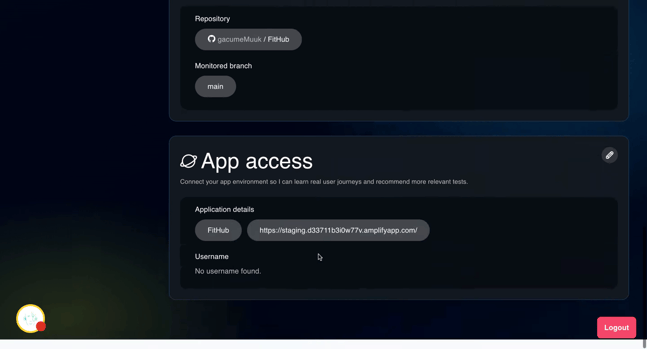
13. Edit Context
You can edit your integrated repository, app repository, and test repository directly from this section whenever updates are needed.
This tutorial walked you through accessing and managing your Amikoo account settings, including your profile details, API key, integrations, and project context. You can now confidently update your settings and manage your repositories as needed.